Before the release of the user-defined functions functionality, there was a “hacky” way to create your own functions, namely through creating modules and using outputs. Now with the release of user-defined functions, you can easily create your own user-defined functions. These are separate functions in addition to the built-in Bicep functions.
In this blog post, you’ll learn what a user-defined function is and how to create and use your own functions.
Note! To use user-defined functions you need Azure Bicep version 0.26.54 or newer.
What is a user-defined function?
A user-defined function is created to repeatedly use complex expressions within Azure Bicep templates. These expressions are essentially a “block of code” that is executed when called. Same as in any other program or scripting language. Not only are functions useful to encapsulate complex expressions, they also give meaning to an action you are doing within your Bicep template. This increases the readability of the code.
This is what a user-defined function looks like in Azure Bicep:
| func funcMultiplyNumbers(a int, b int) int => a * b |
How to create a user-defined function
Let’s dive into user-defined functions to see what they look like. The syntax of a user-defined function looks as follows:
func <function-name> (<parameter-name> <data-type>) <return-type> => <expression>In Bicep, every element begins with a keyword such as resource, var, or param. User-defined functions begin with the keyword func and are defined within a Bicep file.
There are some user-defined functions fundamentals you need to know:
- Each function has a name which must be unique. This name is used to call the function and to execute the expression.
- The function can have parameters and each parameter needs a data type. These data types can be a:
string,int,bool,array,objector auser-defined type. Parameters are optional, but when used each parameter should have a unique name. When using more than one parameter you have to comma-separate those. - The function has a return type which can be a:
string,int,bool,array,objector auser-defined type - At last, the function contains an expression that is the “block of code” and is executed when the function is called.
Basic function
Below you see the definition of a user-defined function. This function is called funcSayHelloTo and has an string as the return type. The string returned is Hello and welcome, John Doe. In this case, the function is executed on the output, but it’s not limited to only outputs and can be used inside resources, modules, variables or parameters.
| func funcSayHelloTo() string => 'Hello and welcome, John Doe' | |
| output outName string = funcSayHelloTo() | |
| /* | |
| Outputs: | |
| 'Hello and welcome, John Doe' | |
| */ |
This function is very static and can be more dynamic using parameters, let’s take a look at parameters.
Function with parameters
Below we see the same definition of a user-defined function and the function has the same output as before, but now the name has been parameterised. The parameter name has been added and expects a string type to be used as input for the function. To execute the function refer to the name, in this case, funcSayHelloTo and add the value required between the round brackets ('John Doe'). When the type does not correspond with the type in the function you will get a compile-time error.
| func funcSayHelloTo(name string) string => 'Hello and welcome, ${name}' | |
| output outHelloAndWelcomeName string = funcSayHelloTo('John Doe') | |
| /* | |
| Outputs: | |
| 'Hello and welcome, John Doe' | |
| */ |
It is possible to define multiple parameters on a function. Below you see a function with two parameters name string and age int.
| func funcPersonNameAndAge(name string, age int) string => 'My name is ${name} and my age is ${age}' | |
| output outPersonInformation string = funcPersonNameAndAge('John Doe', 31) | |
| /* | |
| Outputs: | |
| 'My name is John Doe and my age is 31' | |
| */ |
Function return types
I want to address that the expression (most right side of the function definition) must correspond to the return type. If this is not the case you will receive a compile-time error. Here are some examples other than the string return type:
| func funcReturnTypeArray() array => [1, 2, 3, 4, 5] | |
| func funcReturnTypeObject() object => {name: 'John Doe', age: 31} | |
| func funcReturnTypeInt() int => 1337 | |
| func funcReturnTypeBool(key string) bool => contains({}, key) |
Function reusability
User-defined functions are exportable. This means that they can be imported across your Bicep templates or Bicepparam files. This adds flexibility regarding their reusability.
Below you see the export() decorator added above the function.
| @export() | |
| func funcGreetPerson(name string) string => 'Hello ${name}!' |
After exporting the function it can be imported into a Bicep template or Bicepparam file. Below you see the import statement that you need to use to import the function.
Bicep template
| import { funcGreetPerson } from 'shared.bicep' | |
| output outImport string = funcGreetPerson('John Doe') | |
| /* | |
| Outputs: | |
| 'Hello John Doe!' | |
| */ |
Bicepparam file
| import { funcGreetPerson } from 'shared.bicep' | |
| using 'main.bicep' | |
| param parGreeting = funcGreetPerson('John Doe') |
These examples have been fairly theoretical, but there are many examples of why user-defined functions are useful. Next up, you see a use case of how I use a user-
User-defined function in the real world
At the introduction of this blog, you can read that there is a “hacky” way to create your own functions using Bicep modules. In this scenario, you see an example that I have used in the past to format arguments to populate parameters of an Azure PowerShell deployment script. This made it easier for me to define parameter inputs for the deployment script.
Below you see a module that has two parameters that hold the arguments in an object and a delimiter needed for the join() function. The varJoined variable joins the items together and at last, it returns the output so that it can be used in the Bicep template.
| @description(''' | |
| Pass arguments to use in the deployment script. Default: Empty Object | |
| Example value: | |
| { | |
| name: 'value' | |
| value: 'value' | |
| } | |
| ''') | |
| param parArgument object | |
| @description('Delimiter variable is used for the join() method') | |
| param parDelimiter = ' ' | |
| var varJoined = !empty(parArgument) ? join(map(items(parArgument), arg => '-${arg.key} ${arg.value}'), varDelimiter) : '' | |
| @description(''' | |
| Example output: | |
| -name value -value value | |
| ''') | |
| output outArguments string = varJoined |
In the Bicep template below you see the module from above rewritten to a user-defined function. It has the same output, but it is not treated as a deployment like modules are. A user-defined type has been added and used in the parameter of the function.
| type deploymentScriptArgumentsType = { | |
| name: string | |
| value: string | |
| }[] | |
| func funcFormatArguments(arguments deploymentScriptArgumentsType, delimiter string) string => join(map(arguments, arg => '-${arg.name} ${arg.value}'), delimiter) | |
| output formattedArguments string = funcFormatArguments([{ name: 'name', value: 'John Doe' }, { name: 'age', value: '31' }], ' ') |
In the Bicep template below you see the function used in the deployment script resource. The user-defined type deploymentScriptArgumentsType and the user-defined function funcFormatArguments(...) are defined at the end of the template. The arguments for the deployment script are given in the parScriptArguments parameter, which refers to the user-defined type. Finally, the function funcFormatArguments(...) is called on the arguments property in the deployment script resource.
| @description('Arguments given for the deployment script') | |
| param parScriptArguments deploymentScriptArgumentsType = [ | |
| { | |
| name: 'FirstName' | |
| value: 'John' | |
| } | |
| { | |
| name: 'LastName' | |
| value: 'Doe' | |
| } | |
| ] | |
| @description('Resource location') | |
| param parLocation string = resourceGroup().location | |
| resource resManagedIdentity 'Microsoft.ManagedIdentity/userAssignedIdentities@2022-01-31-preview' = { | |
| name: 'ds-managed-identity' | |
| location: parLocation | |
| } | |
| resource resDeploymentScript 'Microsoft.Resources/deploymentScripts@2020-10-01' = { | |
| name: 'ds-write-host-pwsh' | |
| location: parLocation | |
| kind: 'AzurePowerShell' | |
| identity: { | |
| type: 'UserAssigned' | |
| userAssignedIdentities: { | |
| '${resManagedIdentity.id}': {} | |
| } | |
| } | |
| properties: { | |
| azPowerShellVersion: '11.0' | |
| retentionInterval: 'P1D' | |
| arguments: funcFormatArguments(parScriptArguments, ' ') | |
| scriptContent: ''' | |
| param ( | |
| [Parameter(Mandatory=$true)] | |
| [string] $FirstName, | |
| [Parameter(Mandatory=$true)] | |
| [string] $LastName | |
| ) | |
| Write-Host "Hello and welcome, $FirstName $LastName!" | |
| ''' | |
| } | |
| } | |
| type deploymentScriptArgumentsType = { | |
| name: string | |
| value: string | |
| }[] | |
| func funcFormatArguments(arguments deploymentScriptArgumentsType, delimiter string) string => join(map(arguments, arg => '-${arg.name} ${arg.value}'), delimiter) |
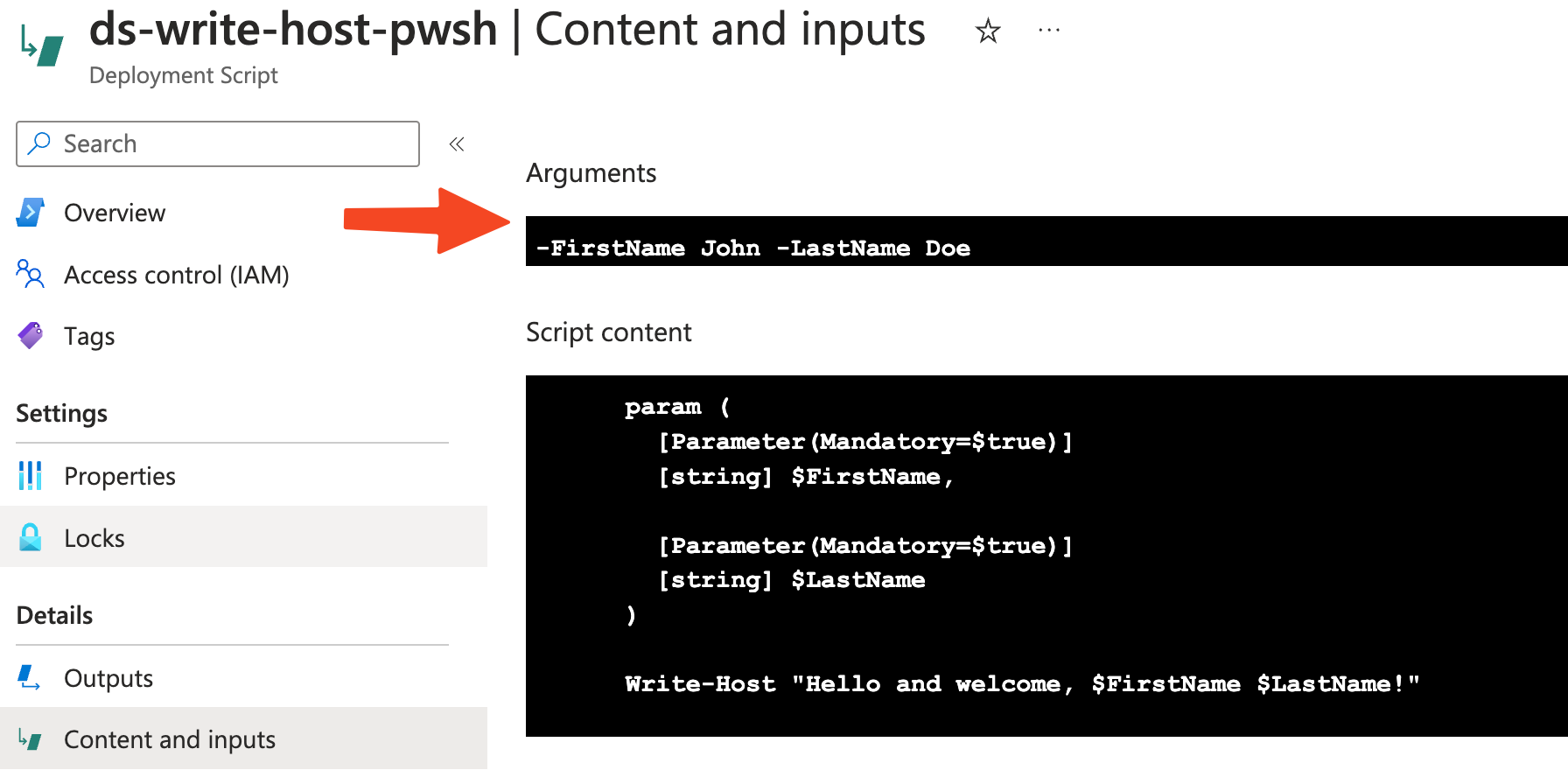
After deployment of the above Bicep template, you see the arguments in the required format:
Technical limitations
There are some technical limitations when using user-defined functions:
- The function can’t access variables.
- The function can only use parameters that are defined in the function.
- The function can’t use the reference function or any of the list functions.
- Parameters for the function can’t have default values.
Conclusion
This is how you can work with user-defined functions. This blog post explained how you can create a function with and without parameters, what the return types are, how to leverage export and import for reusability and it showcased a way to use a user-defined function to format arguments of a deployment script.
If you have repetitive Bicep code, there might be a chance that you can create a function out of it. Each project has its own use case to use custom functions. Also, functions are not only useful to encapsulate complex expressions it also gives meaning to an action you are doing within your Bicep template.
 John Lokerse | Azure & DevOps Engineering