Azure Bicep User-Defined Functions are powerful tools for standardising and sharing logic across your organisation. However, changes to these functions can introduce errors that impact your deployments.
In this blog, you will learn how to set up effective expectation versus reality test cases for your User-Defined Functions, using a simple and straightforward approach to testing your functions by invoking expressions via the bicep console and validating the output in Pester tests.
Note! Bicep version v0.40.2 or higher is required for this feature. If you require the generally available version, Bicep v0.42.1 or higher is needed.
Why you should test your Bicep functions
Testing ensures your functions return consistent, predictable output. Without tests, changes to user-defined functions can break deployments across your organisation, often going unnoticed until they reach production.
High-level overview
In this high-level overview, the test flow of the Bicep functions is explained.
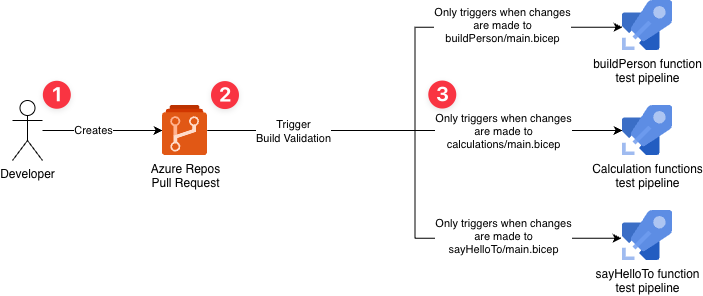
- A developer creates a pull request from a feature branch with main as the target.
- The pull request triggers the configured build validation.
- Each test case is configured as its own build validation pipeline, with the path filter set to the
main.bicepof the function. This means the build validation will only trigger when a certain path has been changed.
Bicep console
The bicep console allows you to run Bicep expressions and snippets directly in your terminal without an active Azure connection. For this blog, this feature is used to avoid deployments to a resource group or subscription. This saves overhead, management time, and latency when running your tests.
Want to learn more about the Bicep Console? Check out my blog post: Experiment, Prototype, and Validate Azure Bicep with the Bicep Console
Pester
Pester is a testing framework for PowerShell that integrates well with CI/CD pipelines. In the context of this blog, Pester acts as the test runner and handles all assertions. Each test case is a separate It block that calls Invoke-BicepExpression and compares the returned string against the expected value using Should -Be. This gives you individual pass/fail visibility per test case.
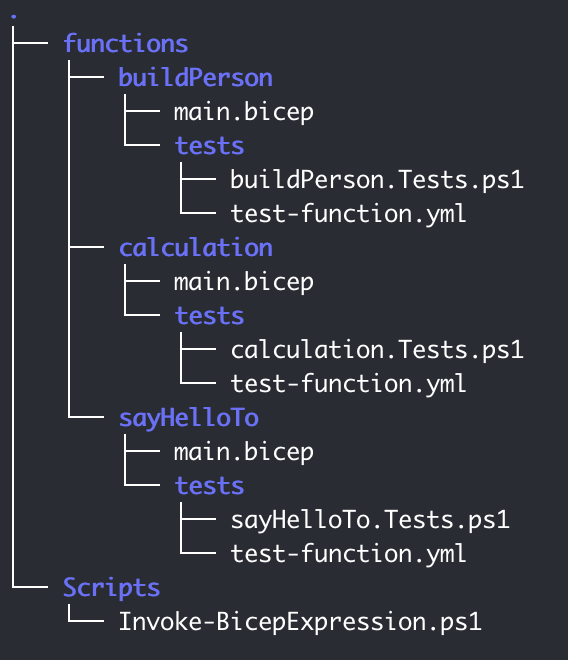
Recommended folder structure
In the screenshot below, you can see the recommended folder structure. This folder structure contains a functions folder, and for each function category (for example calculation), you should create a folder which contains the main.bicep template containing one or more function definitions. Additionally, create a tests folder containing a Pester test file and an Azure Pipeline file. This pipeline will orchestrate the tests.
Bicep Console, Pester and the PowerShell function
Testing Bicep User-Defined Functions via the Bicep Console using automation isn’t supported out of the box, so I wrote a PowerShell helper function that bridges that gap. It uses the Bicep console as an expression evaluator: function definitions are loaded into the console first, then a single test expression is evaluated, and its result is returned as a string. Pester then does the assertions.
A high-level explanation of the PowerShell script:
- The function has two parameters:
- FunctionFile: the path to the
main.bicepfile where the User-Defined Functions are defined. - Tests: a single Bicep expression to evaluate, e.g.
funcAdd(3, 7).
- FunctionFile: the path to the
- The script reads the contents of the supplied
FunctionFileand strips any@export()decorators if present from the User-Defined Functions, as the Bicep console does not support them. - The function and the expression are combined in the
$consoleInputvariable and is piped to thebicep consoleto get the output from the function. - The output is first checked for errors on
BCPdiagnostic codes, or squiggly-underline error messages. If any are found, the function throws immediately. - If no errors are found, the result is returned as a trimmed string so Pester can assert against it with
Should -Be,Should -Match, or any other Pester assertion.
Each test case lives in its own It block in a .Tests.ps1 file, so Pester reports pass/fail per individual case rather than per function file.
The Invoke-BicepExpression function:
| <# | |
| .SYNOPSIS | |
| Evaluates a single Bicep expression against a function definition file and returns the result. | |
| .DESCRIPTION | |
| Intended for use with Pester. Runs the given expression in `bicep console` with the function | |
| definitions from FunctionFile in scope. Returns the raw trimmed output string so the caller | |
| can assert with Should -Be, Should -Match, etc. Throws when the Bicep console reports errors. | |
| .PARAMETER FunctionFile | |
| Path to the .bicep file containing the user-defined function(s). | |
| .PARAMETER Expression | |
| A single Bicep expression to evaluate, e.g. "funcAdd(3, 7)". | |
| .EXAMPLE | |
| Invoke-BicepExpression -FunctionFile ./functions/calculation/main.bicep ` | |
| -Expression "funcAdd(3, 7)" | |
| # Returns: "10" | |
| #> | |
| function Invoke-BicepExpression { | |
| [CmdletBinding()] | |
| param( | |
| [Parameter(Mandatory)] | |
| [string] $FunctionFile, | |
| [Parameter(Mandatory)] | |
| [string] $Expression | |
| ) | |
| $content = Get-Content -Path $FunctionFile -Raw | |
| $stripped = ($content -replace '(?m)^\s*@export\(\)\s*\r?\n', '').Trim() | |
| $consoleInput = "$stripped`n$Expression" | |
| $output = $consoleInput | bicep console 2>&1 | |
| $exitCode = $LASTEXITCODE | |
| $errorLines = $output | Where-Object { $_ -match 'Error|BCP\d+|~{3,}' } | |
| if ($exitCode -ne 0 -or $errorLines) { | |
| throw "Bicep console reported errors for expression '$Expression':`n$($output -join "`n")" | |
| } | |
| $result = $output | | |
| Where-Object { "$_" -notmatch 'WARNING' -and "$_".Trim() -ne '' } | | |
| Join-String -Separator "`n" | |
| return $result.Trim() | |
| } |
In action
To demonstrate the function above, I want to show three scenarios:
- Function call using simple outputs
- Function call using complex objects
- A mix of passing and failing tests
Each scenario has a main.bicep template containing the User-Defined Function(s). Additionally, the Invoke-BicepExpression PowerShell function is invoked with the test cases, and the output in Pester will be shown too.
Function call using simple outputs
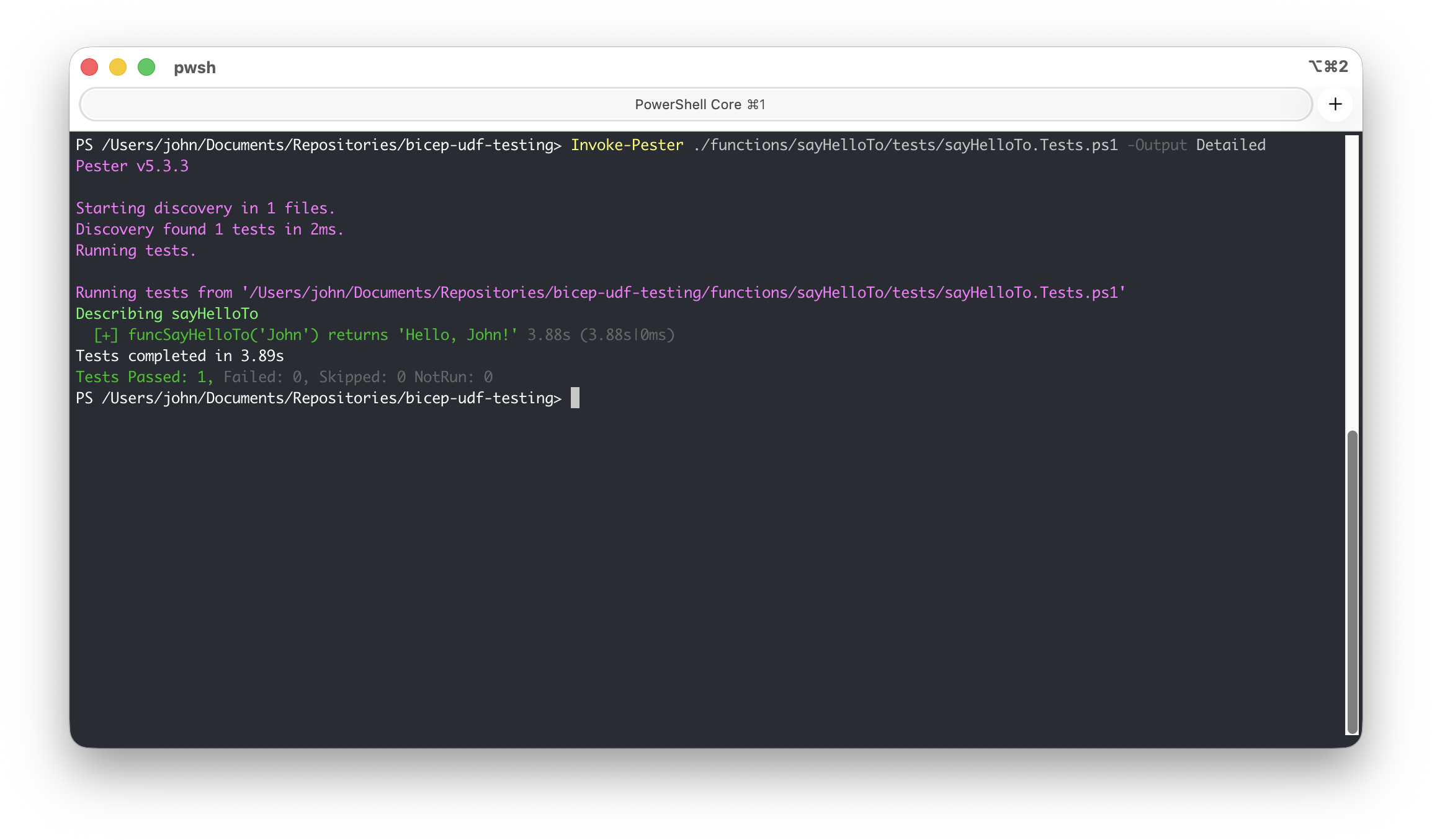
In this test the function sayHelloTo should output Hello, John! when the name parameter is set to John. The User-Defined Function:
func funcSayHelloTo(name string) string => 'Hello, ${name}!'
The test case expects the output to equal 'Hello, John!' using Should -Be:
| BeforeAll { | |
| . "$PSScriptRoot/../../../Scripts/Test-BicepFunction.ps1" | |
| $script:FunctionFile = "$PSScriptRoot/../main.bicep" | |
| } | |
| Describe "sayHelloTo" { | |
| It "funcSayHelloTo('John') returns 'Hello, John!'" { | |
| Invoke-BicepExpression -FunctionFile $script:FunctionFile -Expression "funcSayHelloTo('John')" | | |
| Should -Be "'Hello, John!'" | |
| } | |
| } |
The output on the terminal after running the Pester tests:
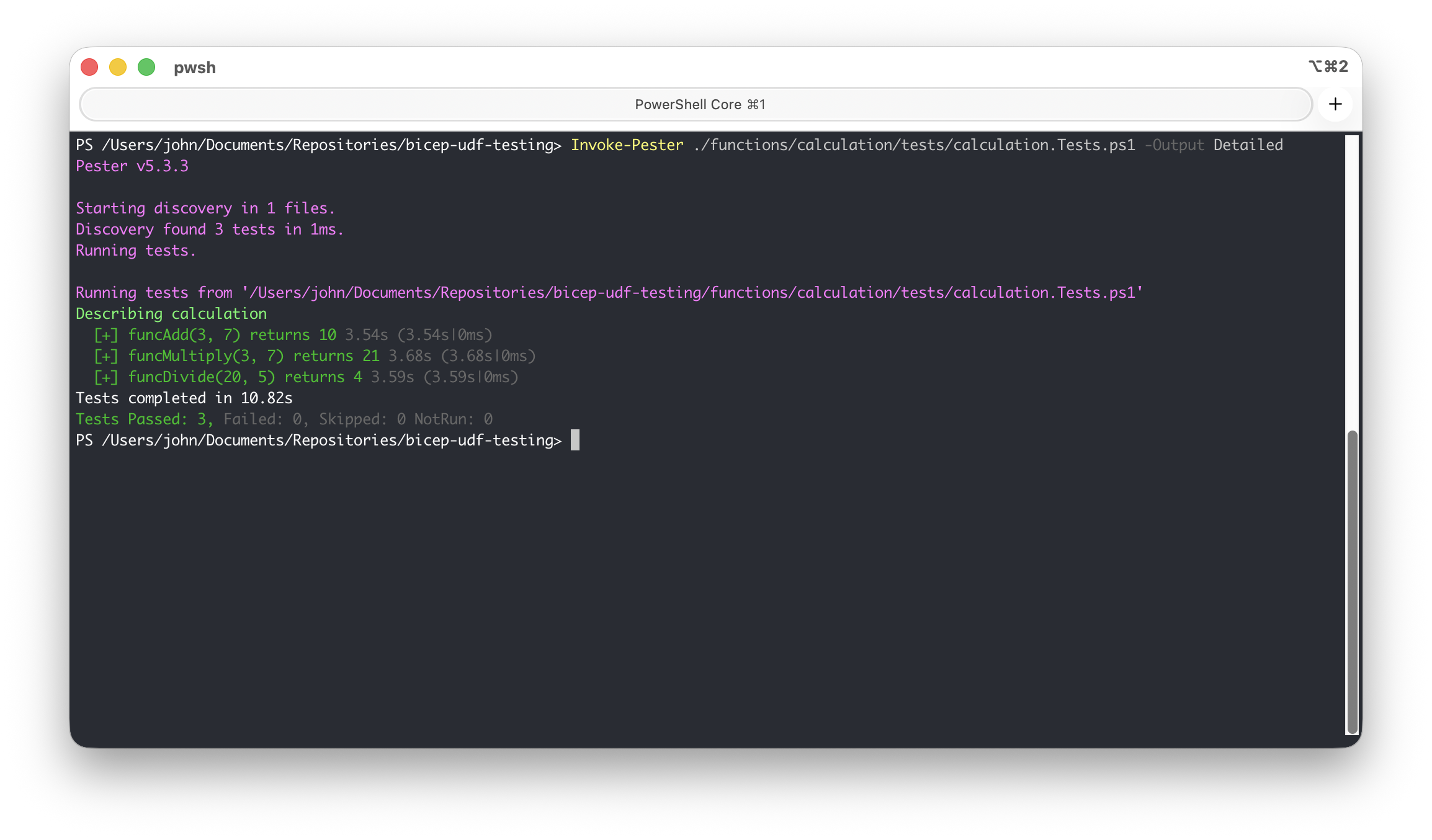
The next test covers the calculation funcAdd, funcMultiply, funcDivide functions. The User-Defined Functions:
func funcAdd(a int, b int) int => a + bfunc funcMultiply(a int, b int) int => a * bfunc funcDivide(a int, b int) int => a / b
The test cases expect the output to be equal to 10, 21, and 4:
| BeforeAll { | |
| . "$PSScriptRoot/../../../Scripts/Test-BicepFunction.ps1" | |
| $script:FunctionFile = "$PSScriptRoot/../main.bicep" | |
| } | |
| Describe "calculation" { | |
| It "funcAdd(3, 7) returns 10" { | |
| Invoke-BicepExpression -FunctionFile $script:FunctionFile -Expression "funcAdd(3, 7)" | Should -Be "10" | |
| } | |
| It "funcMultiply(3, 7) returns 21" { | |
| Invoke-BicepExpression -FunctionFile $script:FunctionFile -Expression "funcMultiply(3, 7)" | Should -Be "21" | |
| } | |
| It "funcDivide(20, 5) returns 4" { | |
| Invoke-BicepExpression -FunctionFile $script:FunctionFile -Expression "funcDivide(20, 5)" | Should -Be "4" | |
| } | |
| } |
The output on the terminal after running the Pester tests:
Function that outputs complex objects
The function funcBuildPerson outputs complex objects based on given inputs via parameters. The User-Defined Function:
type Person = { fullName: string greeting: string isAdult: bool}func funcBuildPerson(firstName string, lastName string, age int) Person => { fullName: '${firstName} ${lastName}' greeting: 'Hello, ${firstName}!' isAdult: age >= 18}
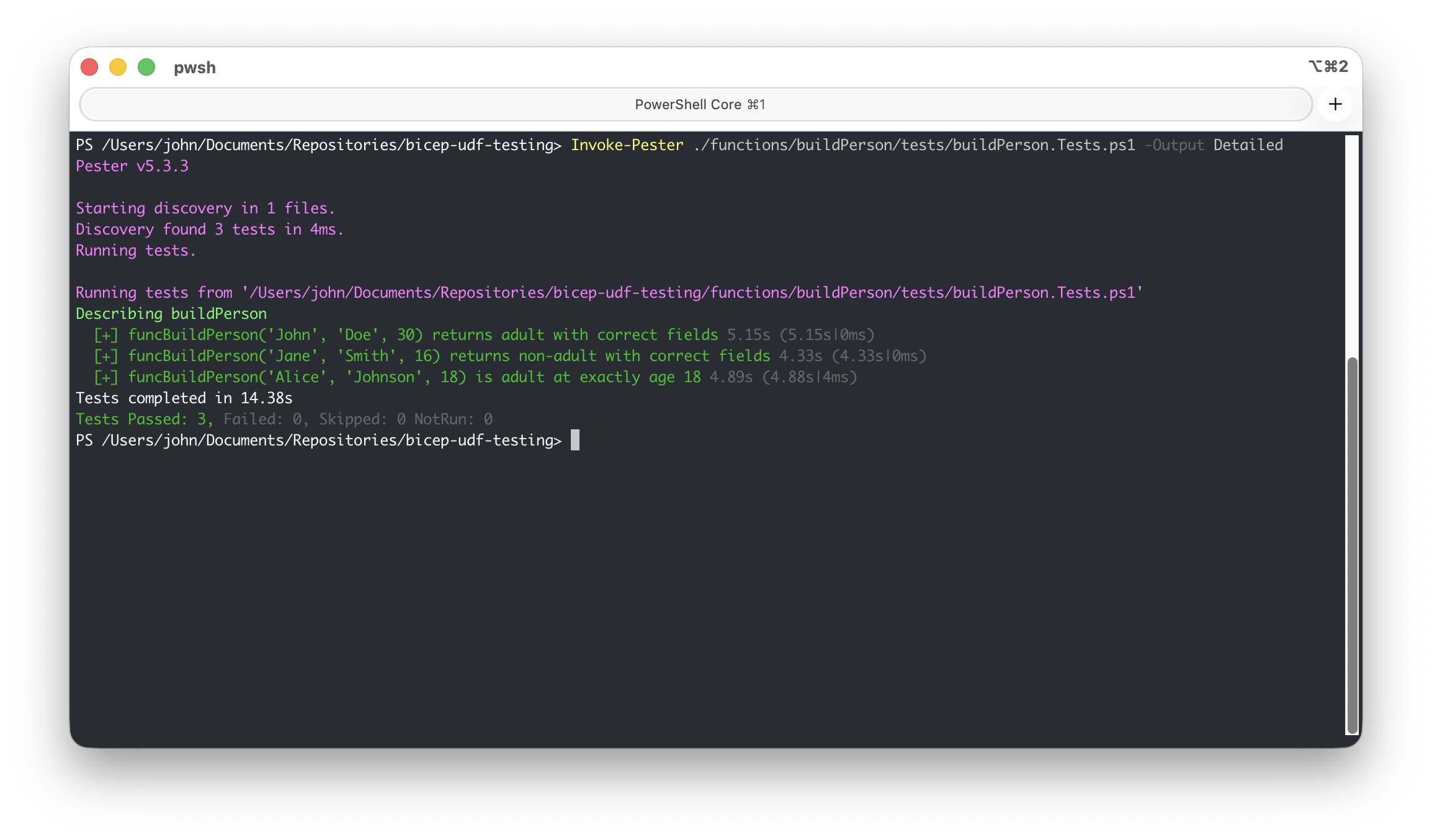
The test cases expect an exact match with the objects set in the $expected variable:
| BeforeAll { | |
| . "$PSScriptRoot/../../../Scripts/Test-BicepFunction.ps1" | |
| $script:FunctionFile = "$PSScriptRoot/../main.bicep" | |
| } | |
| Describe "buildPerson" { | |
| It "funcBuildPerson('John', 'Doe', 30) returns adult with correct fields" { | |
| $expected = @" | |
| { | |
| fullName: 'John Doe' | |
| greeting: 'Hello, John!' | |
| isAdult: true | |
| } | |
| "@ | |
| Invoke-BicepExpression -FunctionFile $script:FunctionFile -Expression "funcBuildPerson('John', 'Doe', 30)" | | |
| Should -Be $expected | |
| } | |
| It "funcBuildPerson('Jane', 'Smith', 16) returns non-adult with correct fields" { | |
| $expected = @" | |
| { | |
| fullName: 'Jane Smith' | |
| greeting: 'Hello, Jane!' | |
| isAdult: false | |
| } | |
| "@ | |
| Invoke-BicepExpression -FunctionFile $script:FunctionFile -Expression "funcBuildPerson('Jane', 'Smith', 16)" | | |
| Should -Be $expected | |
| } | |
| It "funcBuildPerson('Alice', 'Johnson', 18) is adult at exactly age 18" { | |
| $expected = @" | |
| { | |
| fullName: 'Alice Johnson' | |
| greeting: 'Hello, Alice!' | |
| isAdult: true | |
| } | |
| "@ | |
| Invoke-BicepExpression -FunctionFile $script:FunctionFile -Expression "funcBuildPerson('Alice', 'Johnson', 18)" | | |
| Should -Be $expected | |
| } | |
| } |
The output on the terminal after running the Pester tests:
A mix of passing and failing tests
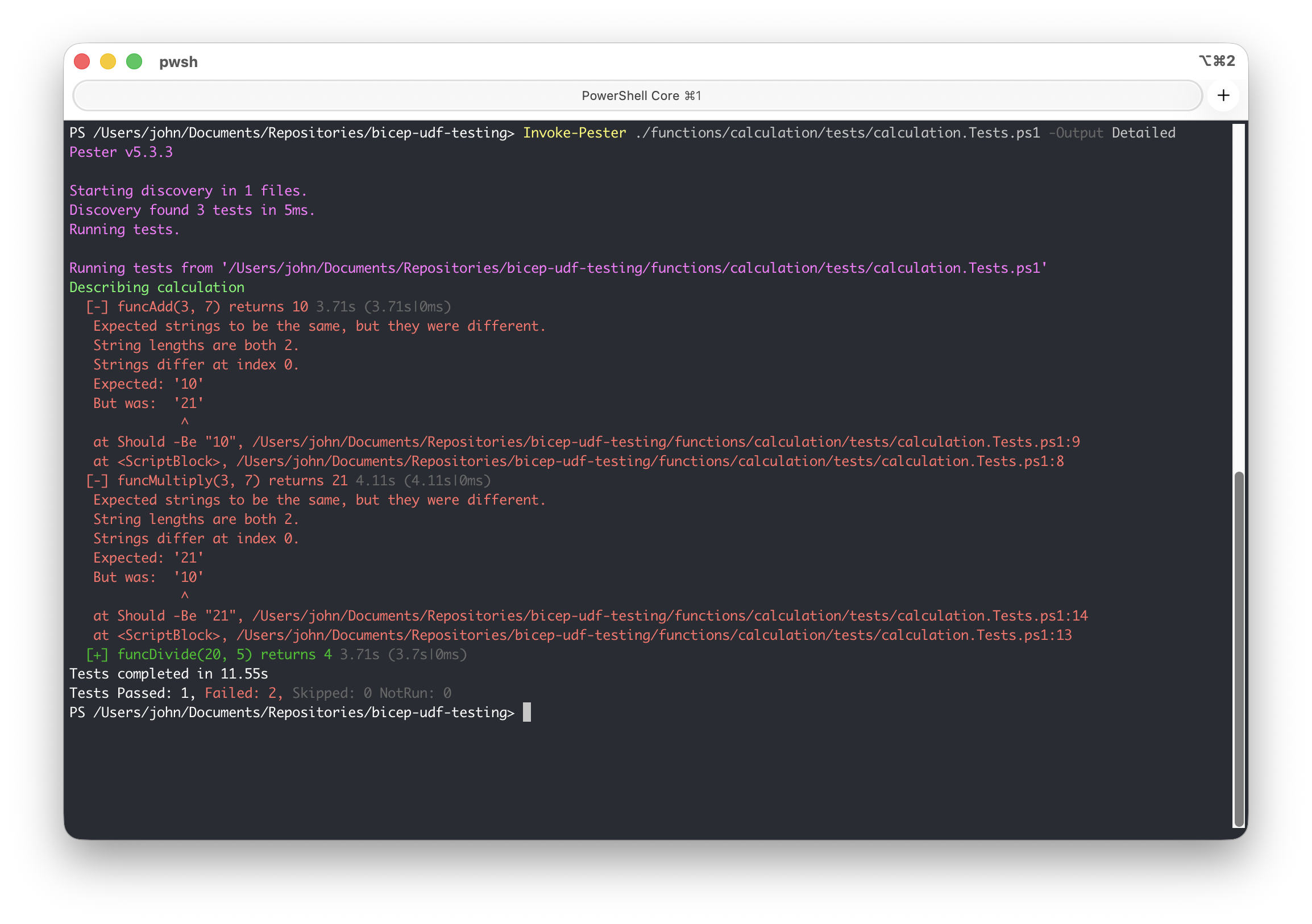
I have shown examples where tests pass, but the script also shows which tests have failed and what the actual and expected outputs are. For this test case, I will use the calculation functions.
Below are the functions where, by accident, the addition and multiplication characters are switched:
func funcAdd(a int, b int) int => a * bfunc funcMultiply(a int, b int) int => a + bfunc funcDivide(a int, b int) int => a / b
Obviously, this is incorrect and should be caught during the test. Below, you can see the actual test cases where we expect funcAdd to output 10 and funcMultiply to output 21:
| BeforeAll { | |
| . "$PSScriptRoot/../../../Scripts/Test-BicepFunction.ps1" | |
| $script:FunctionFile = "$PSScriptRoot/../main.bicep" | |
| } | |
| Describe "calculation" { | |
| It "funcAdd(3, 7) returns 10" { | |
| Invoke-BicepExpression -FunctionFile $script:FunctionFile -Expression "funcAdd(3, 7)" | Should -Be "10" | |
| } | |
| It "funcMultiply(3, 7) returns 21" { | |
| Invoke-BicepExpression -FunctionFile $script:FunctionFile -Expression "funcMultiply(3, 7)" | Should -Be "21" | |
| } | |
| It "funcDivide(20, 5) returns 4" { | |
| Invoke-BicepExpression -FunctionFile $script:FunctionFile -Expression "funcDivide(20, 5)" | Should -Be "4" | |
| } | |
| } |
Due to an error this is not the case and the failures should be caught and reported, but funcDivide should show as passed while funcAdd and funcMultiply should throw an error. The output on the terminal after running the Pester tests:
Azure Pipeline and build validation setup
While it’s very useful to run Invoke-BicepExpression and the Pester tests locally, you ideally want to have them run automatically in an Azure Pipeline whenever a pull request has been made with changes to the User-Defined Function.
In this section, I will show you how to set up an Azure Pipeline to automatically run the Pester tests for each pull request. Below, you can see a YAML template that is used as an Azure Pipeline and triggers the Pester tests in the file *.Tests.ps1 via the given path:
| trigger: none | |
| pool: | |
| vmImage: ubuntu-latest | |
| variables: | |
| - name: functionName | |
| value: "sayHelloTo" | |
| steps: | |
| - task: PowerShell@2 | |
| displayName: "Testing User-Defined Function $(functionName)" | |
| inputs: | |
| targetType: "inline" | |
| pwsh: true | |
| script: | | |
| Invoke-Pester -Path "./functions/$(functionName)/tests" -Output Detailed |
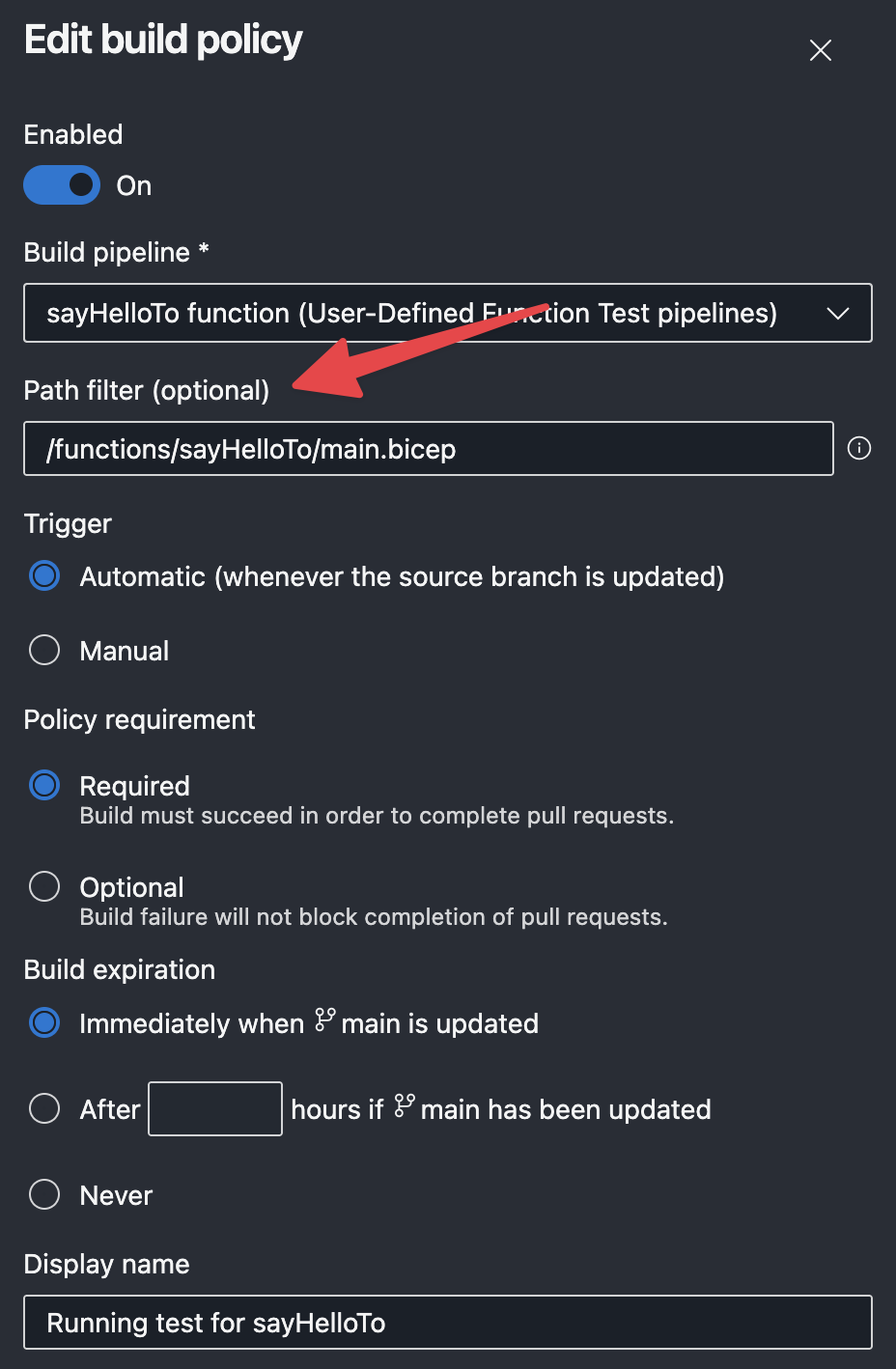
The pipeline is configured to trigger via a Pull Request branch policy. This ensures that the pipeline runs for every newly created pull request. However, you don’t want to run all function tests for every pull request, but rather only those relevant to the changed function. This is where the Path Filter comes in handy. You can configure the build validation to only trigger when certain parts of the codebase are changed. Click here to learn more about branch policies and build validations.
In the image below, you can see the build validation configuration screen. Here you can configure the Path Filter. This should be the path to the function definition. In my case, the path to the function is main.bicep. Once configured, the build validation will trigger only when files in this path are modified or when a specific file is modified.
Result
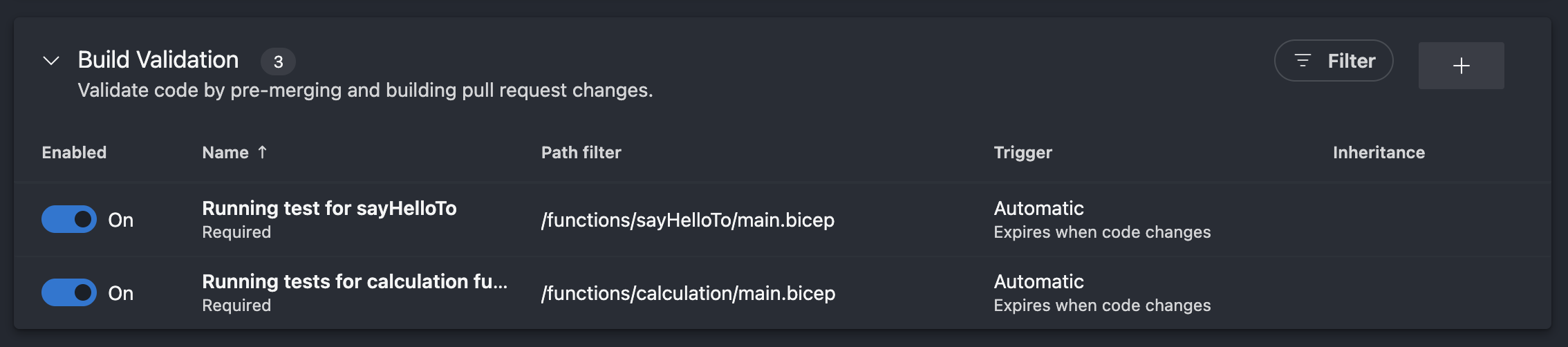
For demonstration purposes, I have created two pipelines and build validations for the sayHelloTo function and the calculation functions. Both have an Azure Pipeline with build validation configured:
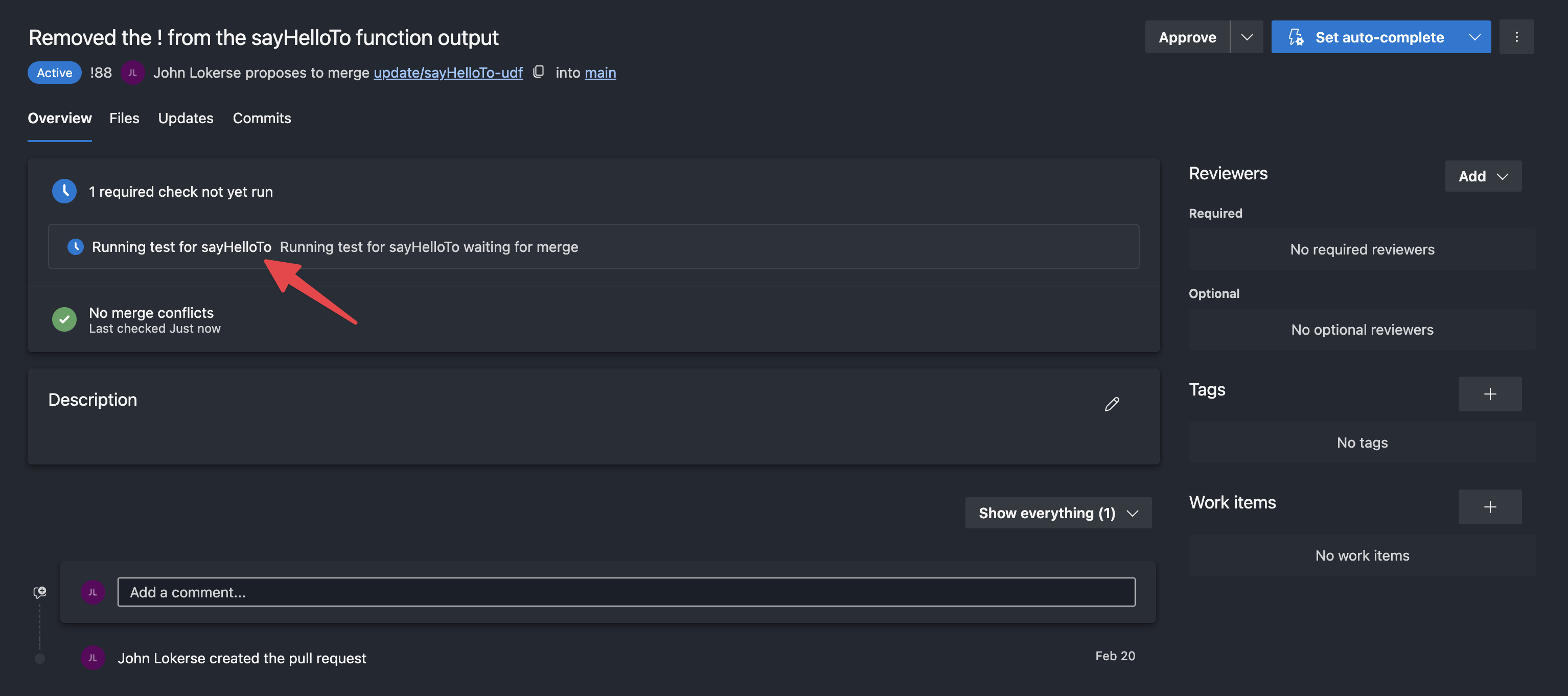
Pull request: sayHelloTo function
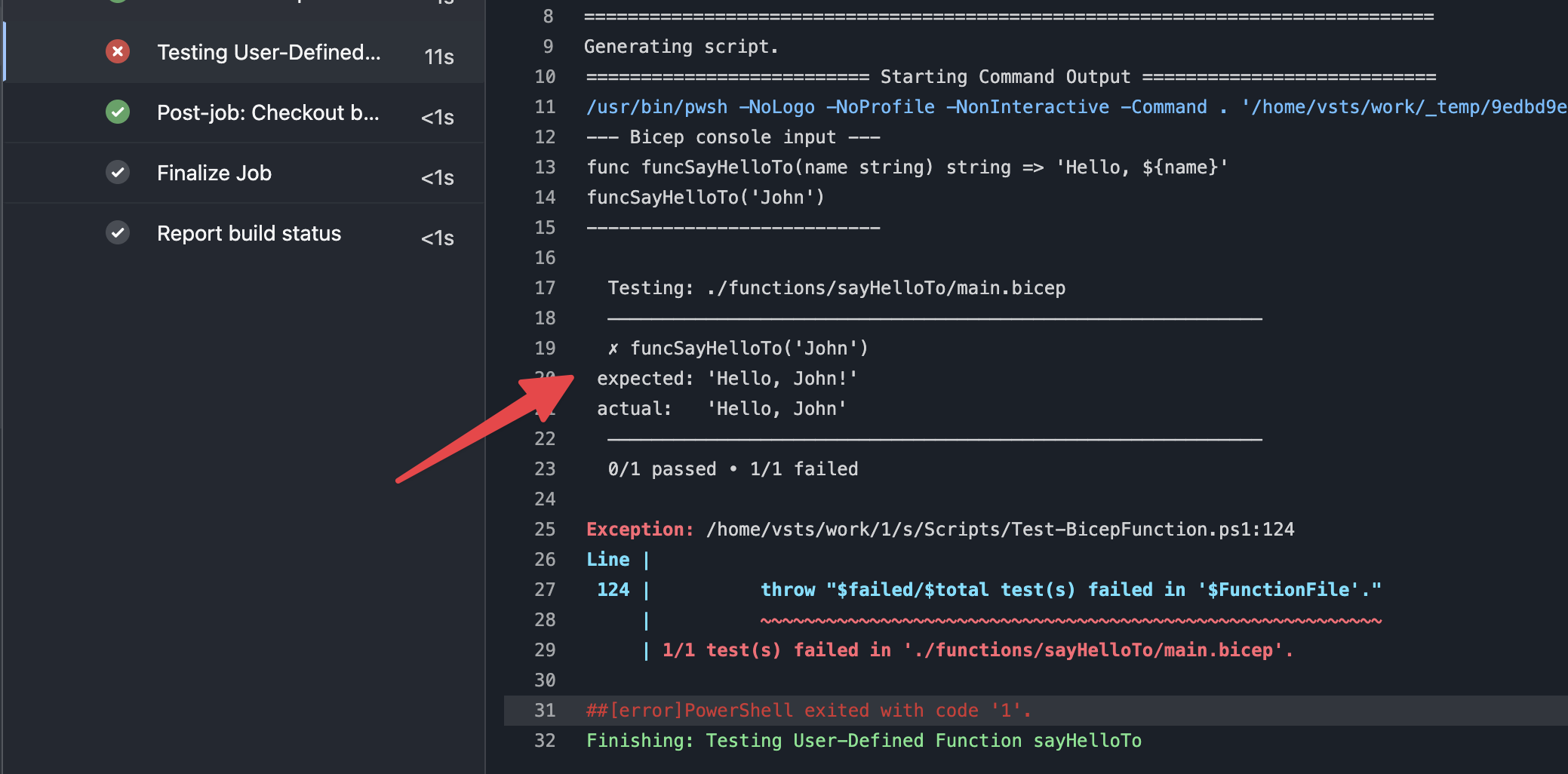
In this pull request, a change was made to remove the exclamation mark from the output of the function. However, the expected value in the Pester test is still set with an exclamation mark, which will result in a test failure.
The pipeline used for this build validation is shown below. It will be triggered automatically for each new pull request:
| trigger: none | |
| pool: | |
| vmImage: ubuntu-latest | |
| variables: | |
| - name: functionName | |
| value: "sayHelloTo" | |
| steps: | |
| - task: PowerShell@2 | |
| displayName: "Testing User-Defined Function $(functionName)" | |
| inputs: | |
| targetType: "inline" | |
| pwsh: true | |
| script: | | |
| Invoke-Pester -Path "./functions/$(functionName)/tests" -Output Detailed |
And the following Pester test is invoked via the pipeline:
| BeforeAll { | |
| . "$PSScriptRoot/../../../Scripts/Test-BicepFunction.ps1" | |
| $script:FunctionFile = "$PSScriptRoot/../main.bicep" | |
| } | |
| Describe "sayHelloTo" { | |
| It "funcSayHelloTo('John') returns 'Hello, John!'" { | |
| Invoke-BicepExpression -FunctionFile $script:FunctionFile -Expression "funcSayHelloTo('John')" | | |
| Should -Be "'Hello, John!'" | |
| } | |
| } |
In the images below, you can see the build validation being triggered, the changes that were made in the pull request, and the logging output of the build validation after it failed.

Pull request: calculation functions
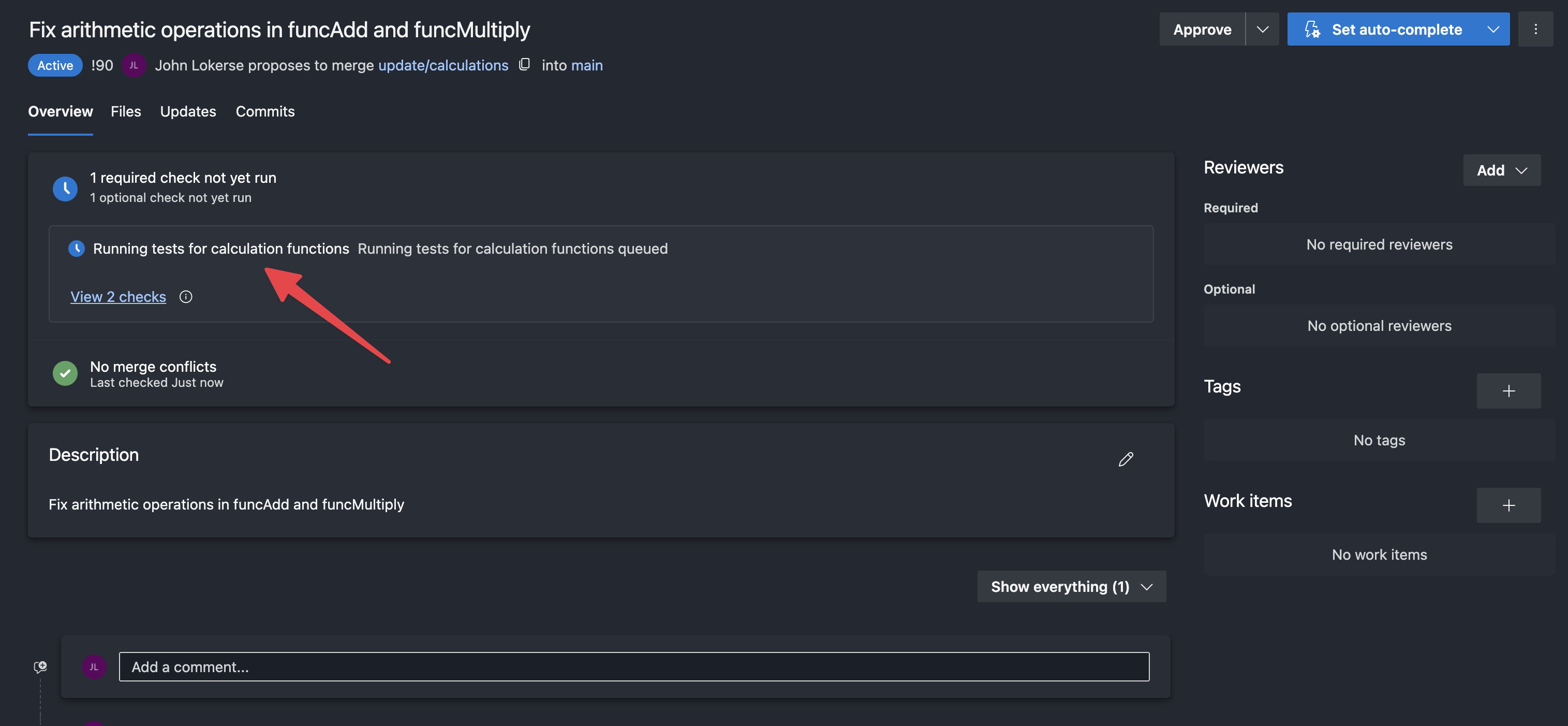
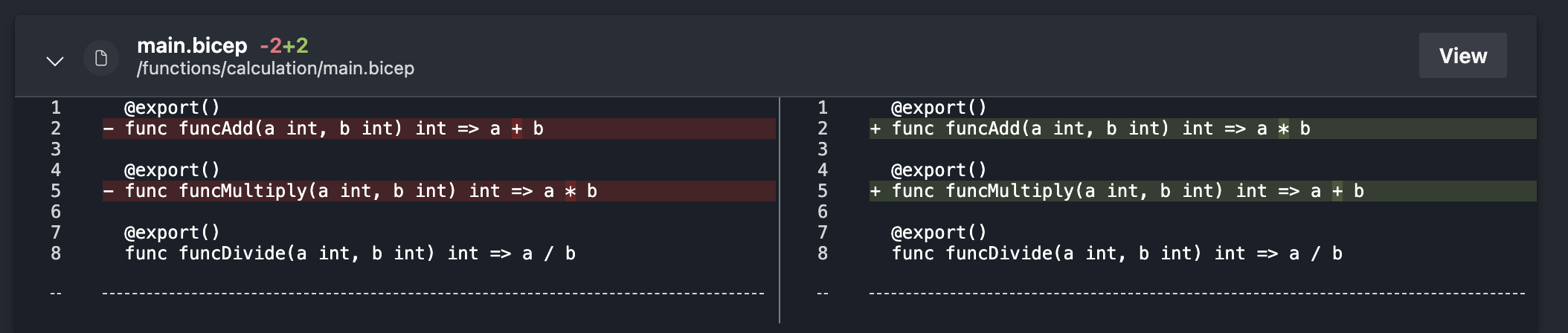
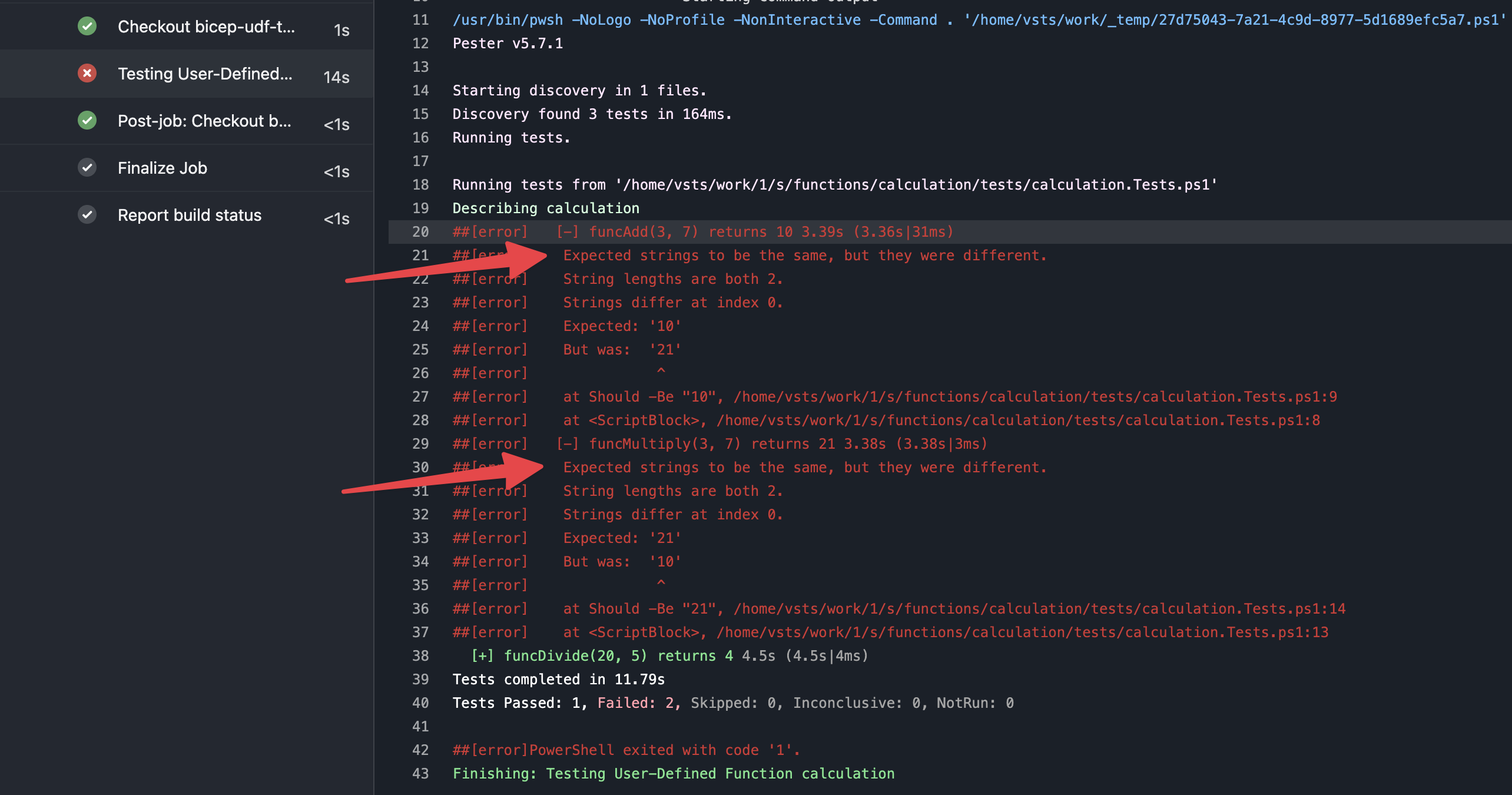
In this pull request, an accidental change was made to the arithmetic operations of the funcAdd (changed to multiply) and funcMultiply (changed to addition), meaning the calculations are not correct and the tests should fail.
The pipeline used for this build validation is shown below. It will be triggered automatically for each new pull request:
| trigger: none | |
| pool: | |
| vmImage: ubuntu-latest | |
| variables: | |
| - name: functionName | |
| value: "calculation" | |
| steps: | |
| - task: PowerShell@2 | |
| displayName: "Testing User-Defined Function $(functionName)" | |
| inputs: | |
| targetType: "inline" | |
| pwsh: true | |
| script: | | |
| Invoke-Pester -Path "./functions/$(functionName)/tests" -Output Detailed |
And the following Pester tests are invoked via the pipeline:
In the images below, you can see the build validation being triggered, the changes that were made in the pull request, and the logging output of the build validation after it failed.
Bicep Testing Framework
There are traces in Azure Bicep, such as the assert property, that lead to an experimental Bicep testing framework made by the Bicep team, but since this is still experimental and highly subject to change I decided to implement my own approach to test my User-Defined Functions. Regarding the Bicep console, this feature became generally available in Bicep version v0.42.1.
If you are interested in learning more about the Bicep Testing Framework, Azure Infrastructure as Code MVP Dan Rios wrote an excellent blog about this already: https://rios.engineer/exploring-the-bicep-test-framework-🧪/
Conclusion
Testing your Azure Bicep functions is essential for maintaining reliable functions. By implementing this setup, you can catch errors in your user-defined functions before they reach production.
Additionally, integrating these tests into your Azure Pipelines with build validations ensures that changes to functions are automatically validated when pull requests are created. While the Bicep team is working on an official testing framework, I highly recommend implementing this practical approach to start testing your Bicep User-Defined Functions with Pester.
 John Lokerse | Azure & DevOps Engineering