
GitHub Copilot code review is now available in Azure DevOps (public preview), bringing AI-assisted pull request reviews to teams that use Azure Repos. Instead of relying only on manual reviews, you can add GitHub Copilot as a reviewer and let it analyse changed code, identify potential issues, and provide comments directly in the pull request.
In this blog, you will learn how GitHub Copilot code review works in Azure DevOps, how to configure it at organisation, project, and repository level, how automatic reviews and custom instructions work, and what the review output, logs, and billing look like in practice.
What is GitHub Copilot code review for Azure DevOps?
As the name suggests, GitHub Copilot code review for Azure DevOps is a tool used to review code in pull requests. When GitHub Copilot finishes the review, it posts comments and suggestions on the changed code within the pull request, just like a human reviewer.
GitHub Copilot code review can review any language, including not only programming languages but also natural languages. Additionally, it is fully customisable through custom instructions, so the review is not only generic but can also take your project context into account. GitHub Copilot code review in Azure DevOps is built on the GitHub Copilot SDK. Under the hood, Azure DevOps connects to GitHub to process the code and review.
High-level overview
The high-level overview below explains the workflow of the GitHub Copilot code review process:
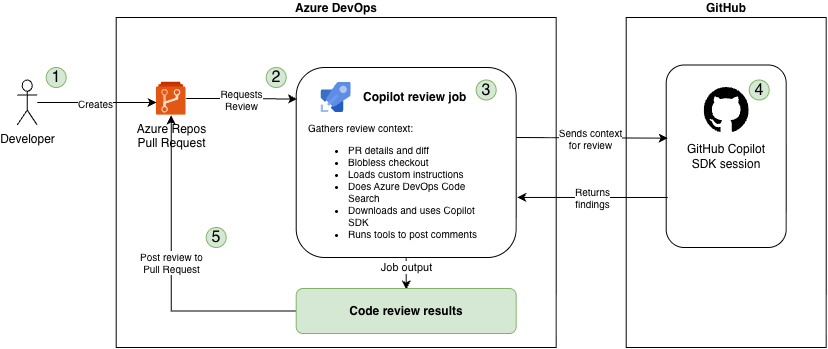
- A developer creates a pull request.
- The developer either requests a code review manually or the review is configured to run automatically.
- The code review job runs several tasks, such as retrieving pull request details, performing code searches, and loading custom instructions. The main goal at this stage is to interact with the GitHub Copilot SDK to initiate a Copilot session.
- GitHub creates the Copilot session and runs the code review. After the review is completed, the findings are returned to the Copilot review job.
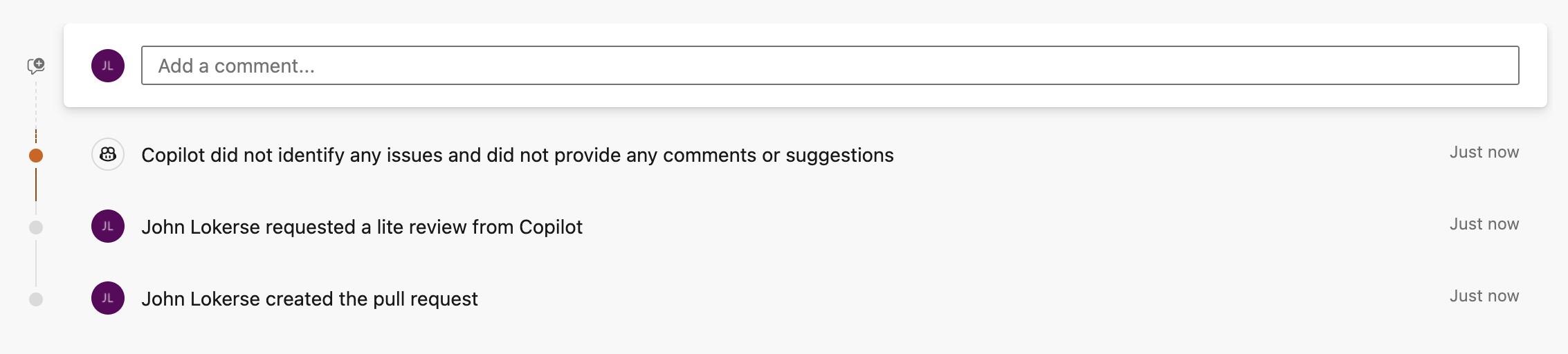
- Finally, comments and suggestions are posted on the lines of code that require attention. If there are no comments or suggestions it will report it back in the pull request that there are no comments or suggestions.
Where does it run?
The orchestration starts when a user adds GitHub Copilot as a reviewer or when the review is triggered automatically through a branch policy. The code review workflow itself runs on agent pool compute. In essence, it is an Azure Pipeline run that orchestrates the review process and handles the data transfer between Azure DevOps and GitHub.
The AI processing does not run on the Azure Pipeline agent itself. Instead, it runs on GitHub infrastructure, while the Azure Pipeline handles the orchestration and communication between both platforms.
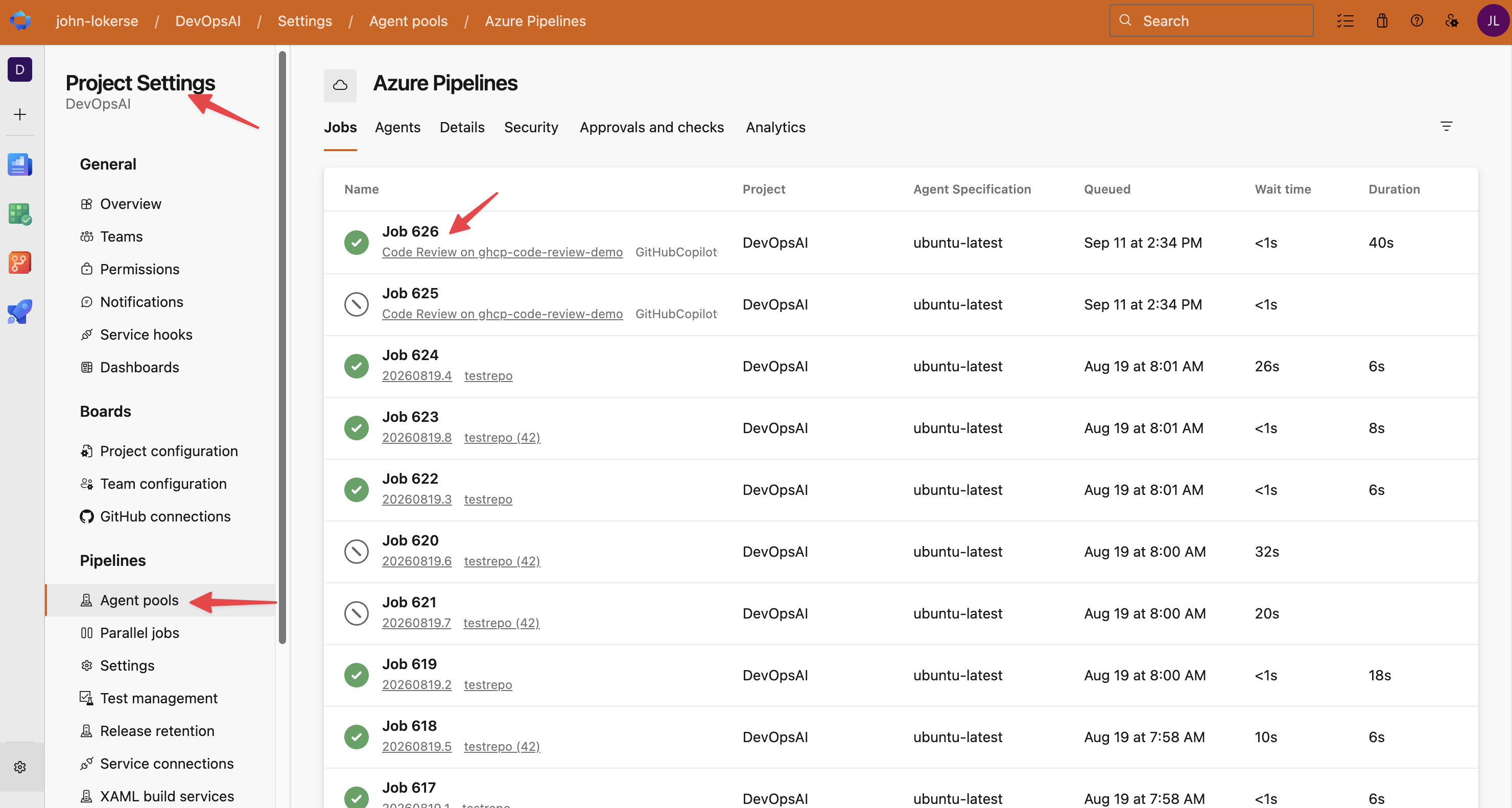
Code review only supports Microsoft-hosted agents via Azure Pipelines or Managed DevOps Pools. Virtual Machine Scale Set agents and standalone virtual machines are not supported. Each code review run can be found on the Agent pools overview page in the Azure DevOps project or organisation settings:

Code reviewer configuration
GitHub Copilot code review can be configured at three different scopes within Azure DevOps:
- Organisation
- Project
- Repository
Before you can configure it for projects or repositories, a user with the Project Collection Administrators permission must first enable the code review feature in the organisation settings.
To enable GitHub Copilot code review, go to the Azure DevOps organisation settings and follow these steps:
- Go to Repos > Repositories.
- Scroll down to GitHub Copilot code review and enable the feature using the toggle.
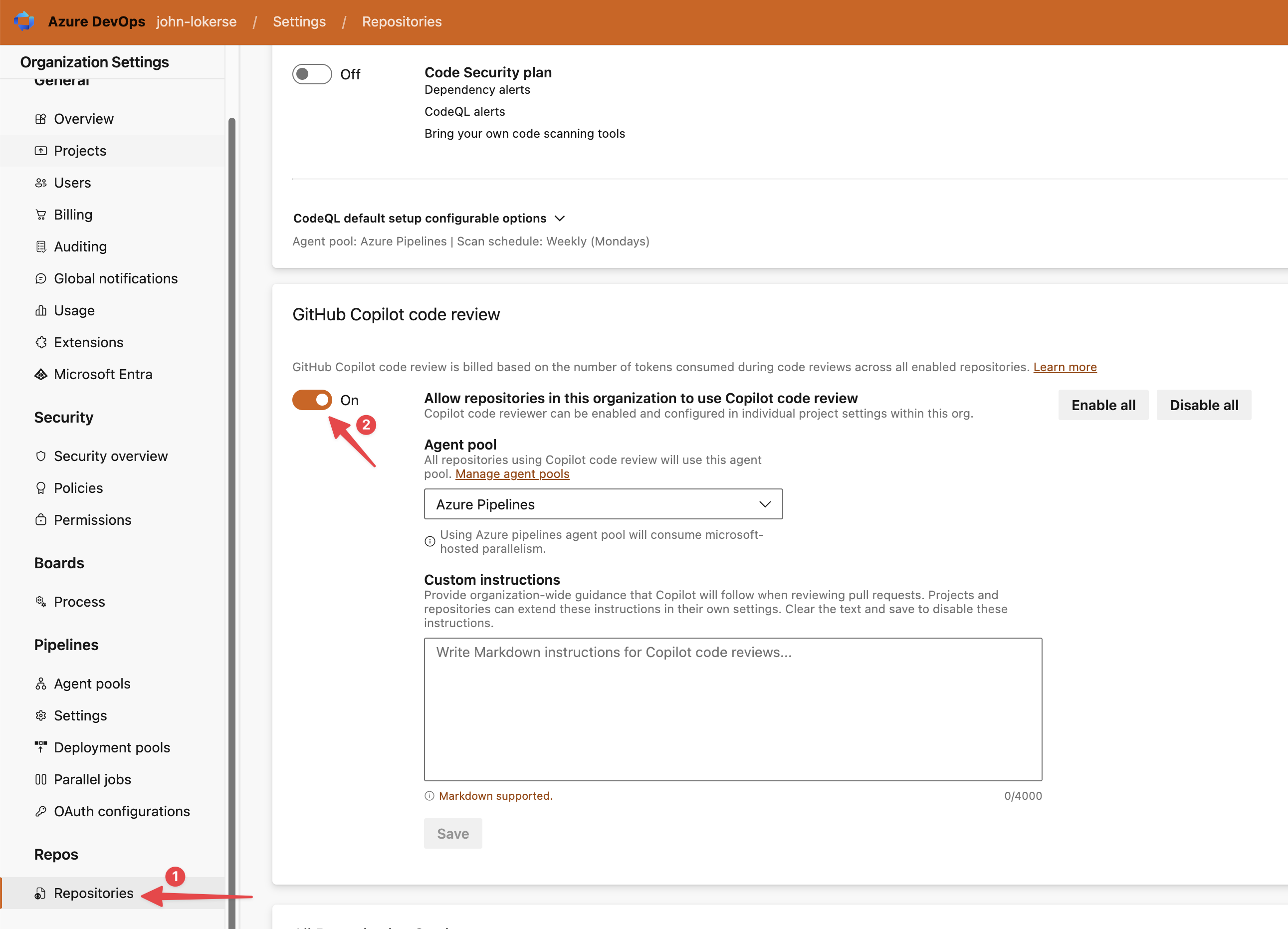
On this screen, you can enable GitHub Copilot code review for the entire organisation, select the agent pool used for code review runs, and configure organisation-wide custom instructions. These instructions can be extended at the project level and repository level via custom instructions.
You can either enable code review for the entire organisation or configure it for selected projects or repositories. If you choose the latter, the feature must be enabled at each scope in Azure DevOps. After enabling it at the organisation level, it becomes available at the project level. From there, you can enable code review for all repositories in the project or configure it for selected repositories in the Azure Repos project settings.
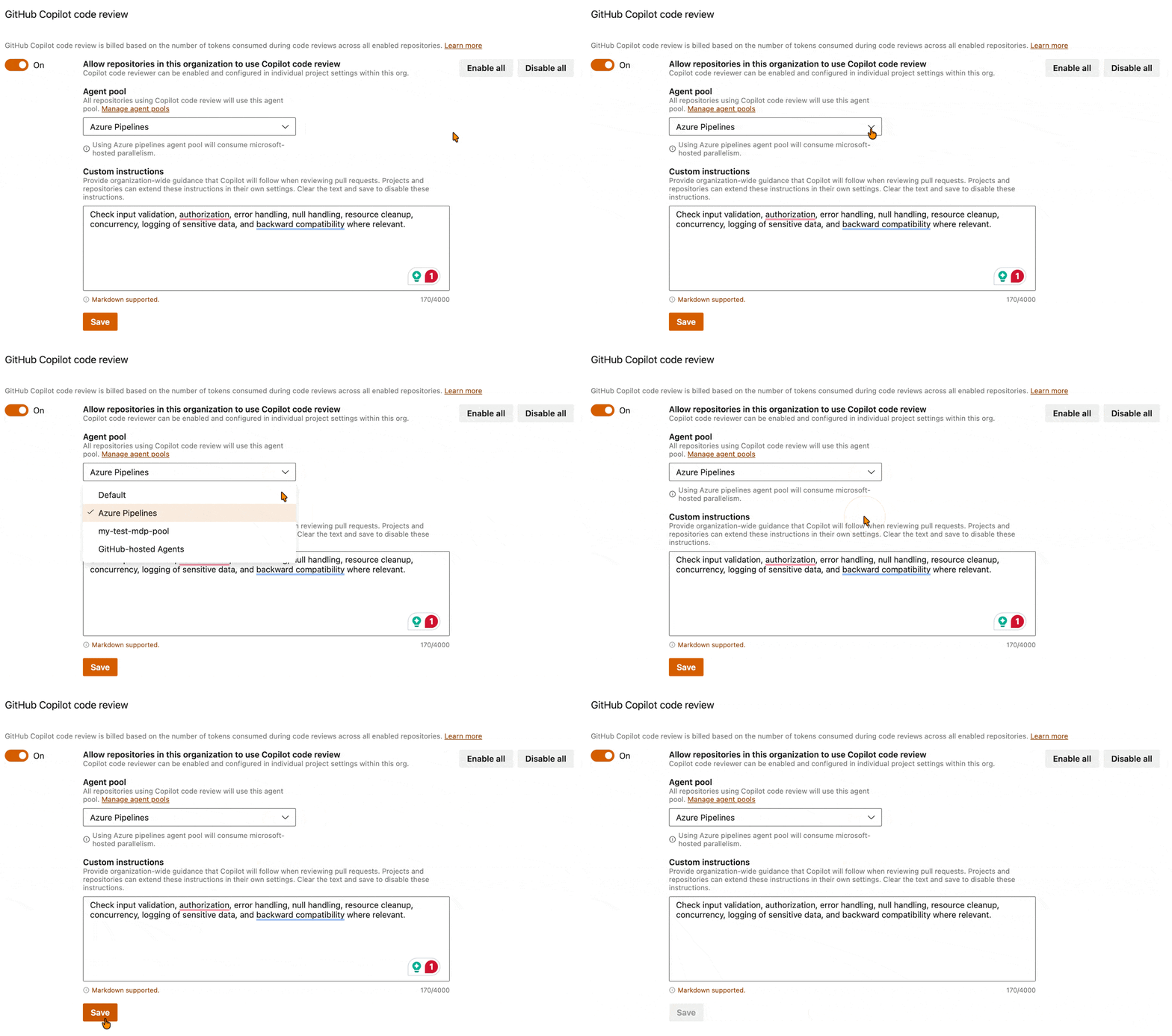
Automatic review via branch policy
By default, GitHub Copilot code review is triggered when a user requests a review by clicking the Request button in the pull request:
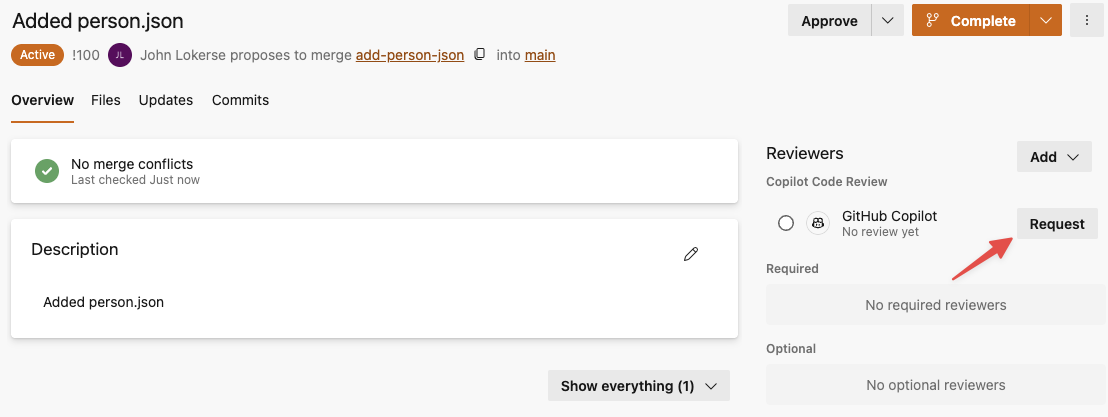
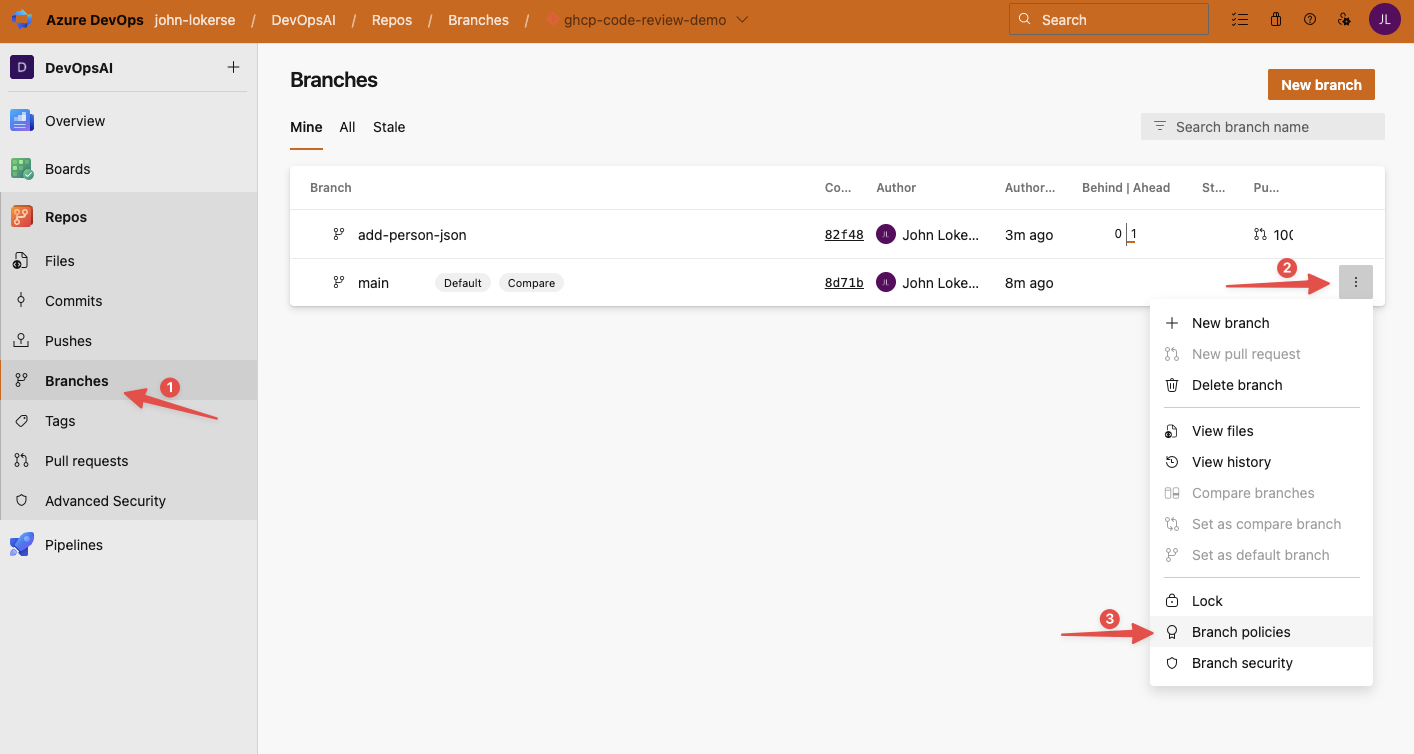
If you want GitHub Copilot code review to be triggered automatically, you can configure a branch policy. To do this, go to the Branches overview and hover over the branch for which you want to configure automatic reviews. In the example below, this is the main branch. Click the three dots on the right and select Branch policies.
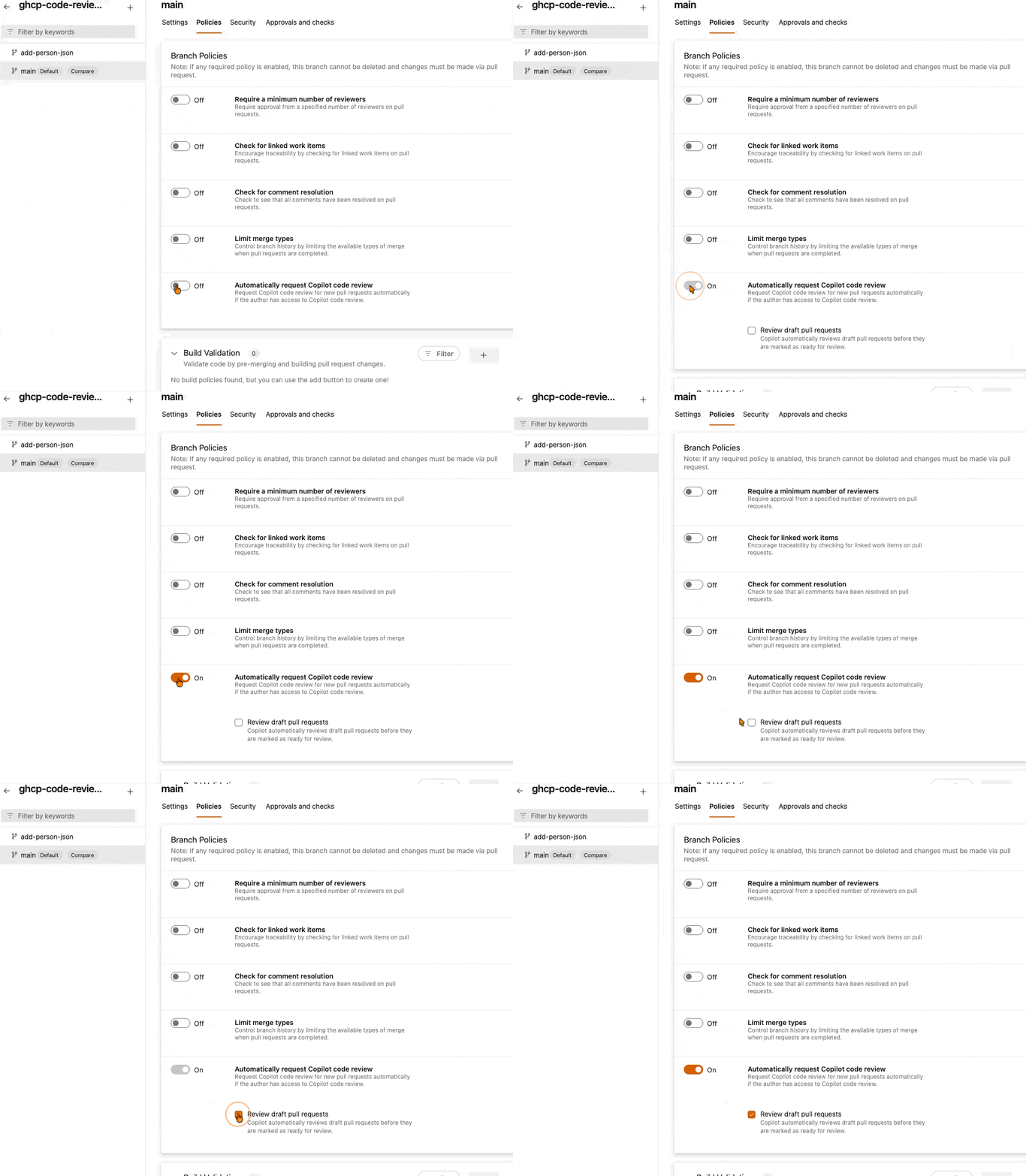
On the branch policy configuration page, you can enable Automatically request Copilot code review. This runs the code review immediately after the pull request is created and uses the configured review effort level from the project or repository settings.
Review effort levels
When assigning GitHub Copilot to a pull request, you can select a review effort level:
- Lite: This level performs a cost-efficient review and provides targeted feedback on apparent bugs, security vulnerabilities, and style inconsistencies.
- Balanced: This level performs a deeper analysis than Lite and uses a model with stronger reasoning capabilities. Use Balanced for code that contains more complex logic or is security-sensitive.
Currently, only Lite and Balanced are available and documented. A Max review level is also expected to become available later. This level will provide the most thorough review, but with higher token usage and cost.
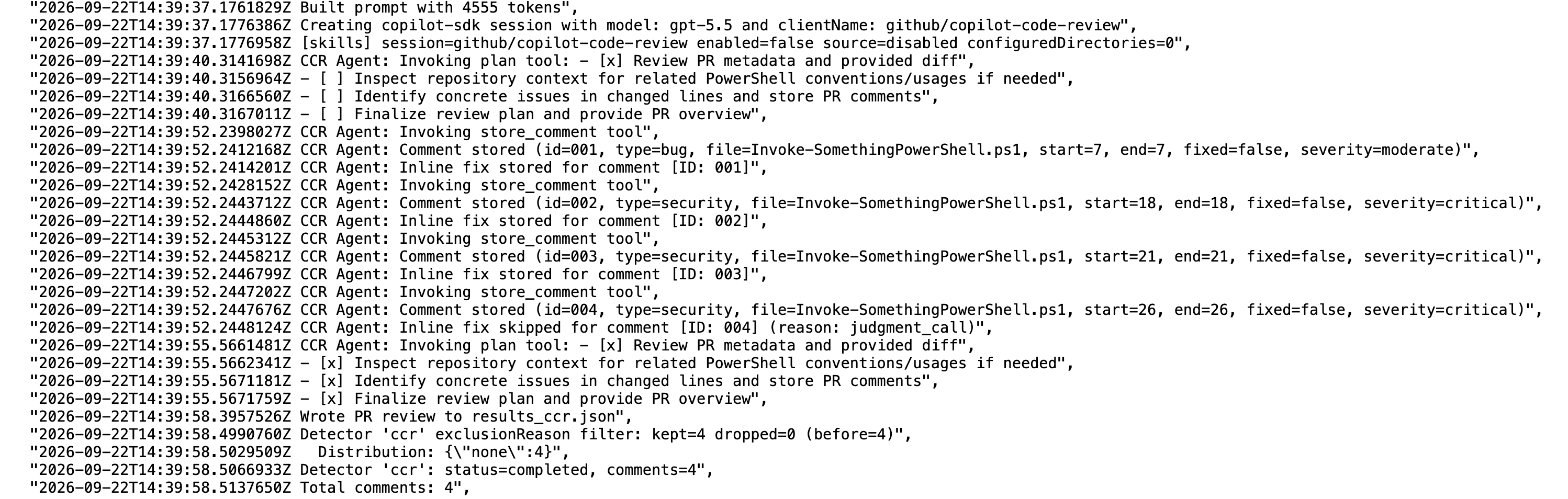
The documentation does not currently specify which model is used for each review level. I have run a few reviews using the Lite level, and the logs showed that GPT-5.5 was used for each run.
In action
To demonstrate the output of GitHub Copilot code review, I will show three scenarios:
- A single-file review
- A multi-file review using multiple file types: JSON, PowerShell, and Bicep
- A review where no comments are returned
The files used in these scenarios are designed to demonstrate the capabilities of GitHub Copilot code review and intentionally contain obvious mistakes and errors.
Single file review
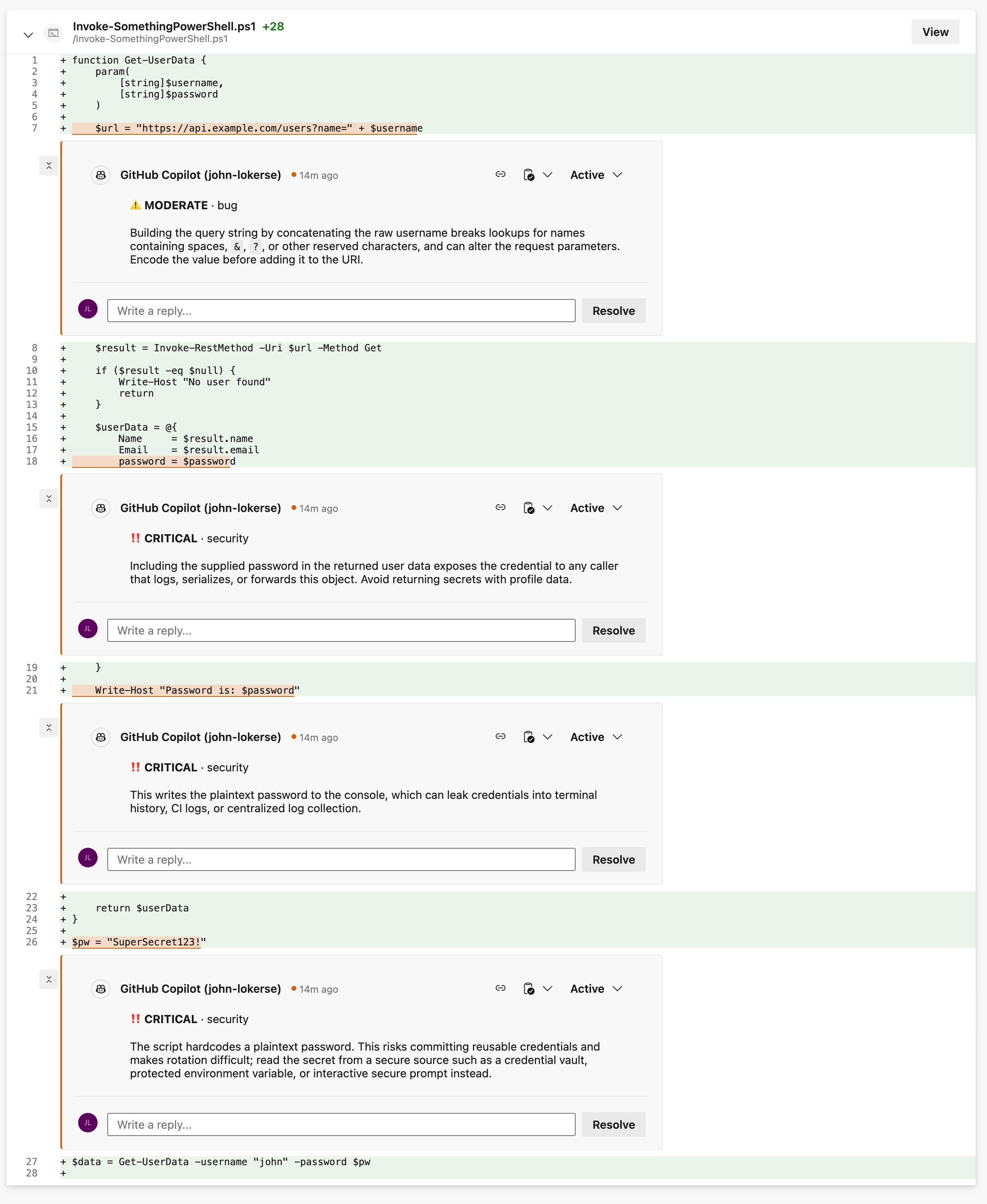
In the image below, you can see the review of a PowerShell script and the comments generated by GitHub Copilot:
Multi file review
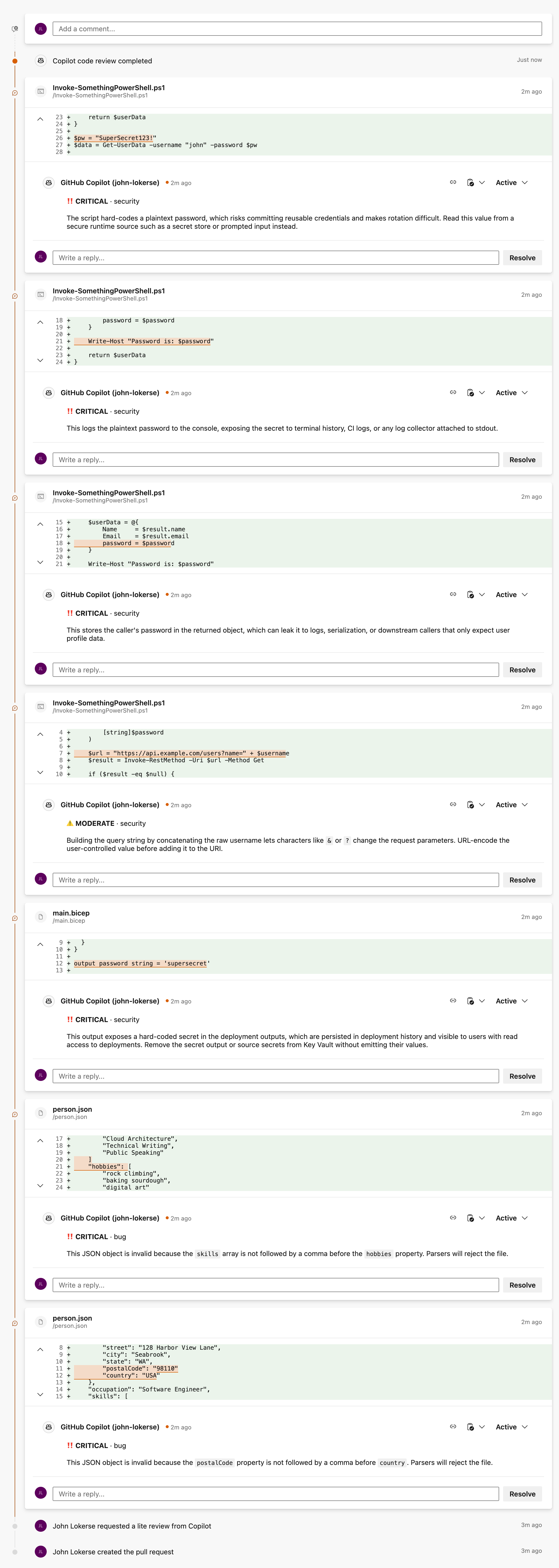
In the image below, you can see the review of multiple files and the comments generated by GitHub Copilot:
(Click the image to enlarge)
Review without comments or suggestions
In the image below, you can see that GitHub Copilot did not report any issues and therefore did not provide any comments or suggestions:
Personalisation via custom instructions
You can improve the quality of code reviews by providing additional context about your code and project. In Azure DevOps, you can configure custom instructions at the organisation or project level through the settings pages. You can also define repository-level instructions in a GitHub Copilot instructions file named copilot-instructions.md.
When Copilot reviews a pull request, it combines all applicable instructions from the organisation, project, and repository scopes. If instructions conflict, the following precedence applies:
- Repository-scoped instructions (via code)
- Project-scoped instructions (via Azure DevOps UI)
- Organisation-scoped instructions (via Azure DevOps UI)
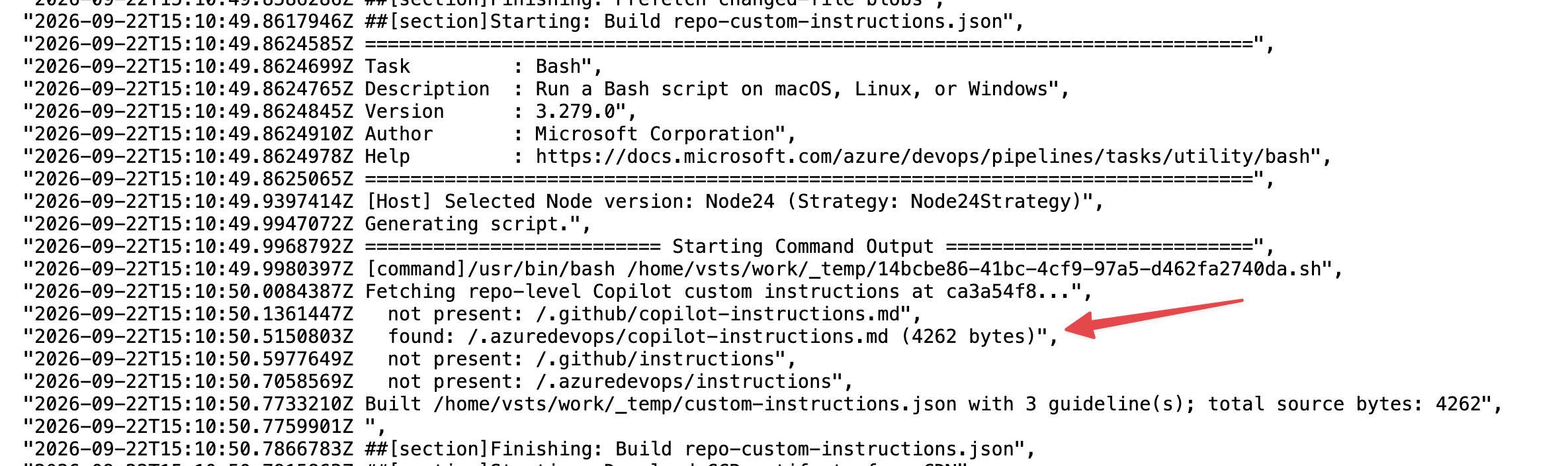
For repository-level instructions, create a file named copilot-instructions.md in either the .github or .azuredevops directory at the root of the repository. Good to know, is that the Copilot instructions are loaded from the target branch.
Additionally, you can define scoped instructions in the .github/instructions/ folder. For example, to create instructions specifically for Bicep files, create a bicep.instructions.md file and add the following YAML front matter:
---applyTo: "**/*.bicep"Instructions here
If you already use GitHub Copilot custom instructions in your repository, these instructions are automatically applied during code review. In the image below, you can see that the copilot-instructions.md file in the .azuredevops directory is detected and loaded:
Logs
If the code review fails or you want a detailed overview of what happened during the run, you can check the logs in Azure DevOps. Each code review runs as an Azure Pipeline job, which means a detailed log trace is available.
Normally, you would inspect a pipeline run from the Azure Pipelines overview, but GitHub Copilot code review works slightly differently. To find the logs of a code review run:
- Go to Project Settings > Pipelines > Agent pools.
- Open the run that failed or the run for which you want more details of.
After opening the run, Azure DevOps shows the logs for that job in JSON format. In these logs, you can find details such as which model was used for the code review, which tools were invoked, which tasks were executed, and more. The snippet below shows examples of information available in the logs, including the Copilot session creation, the model name, and tool calls:
Billing, cost and monitoring
GitHub Copilot code reviews consume GitHub AI credits and are billed to the Azure subscription linked to your Azure DevOps organisation. The billing system uses AI Credits, where each credit is worth USD 0.01. This means that if your code review uses 1,000 credits, GitHub will charge you $10. The cost is charged to the billing subscription configured in Azure DevOps.
The actual cost of code reviews can be found in Azure. Go to the Azure subscription that is configured as the billing location for Azure DevOps, then navigate to Cost Management > Cost Analysis. In this overview, you can see the total cost for all resources. AI Credits are charged under the GitHub name and the microsoft.visualstudio/organizations resource type.
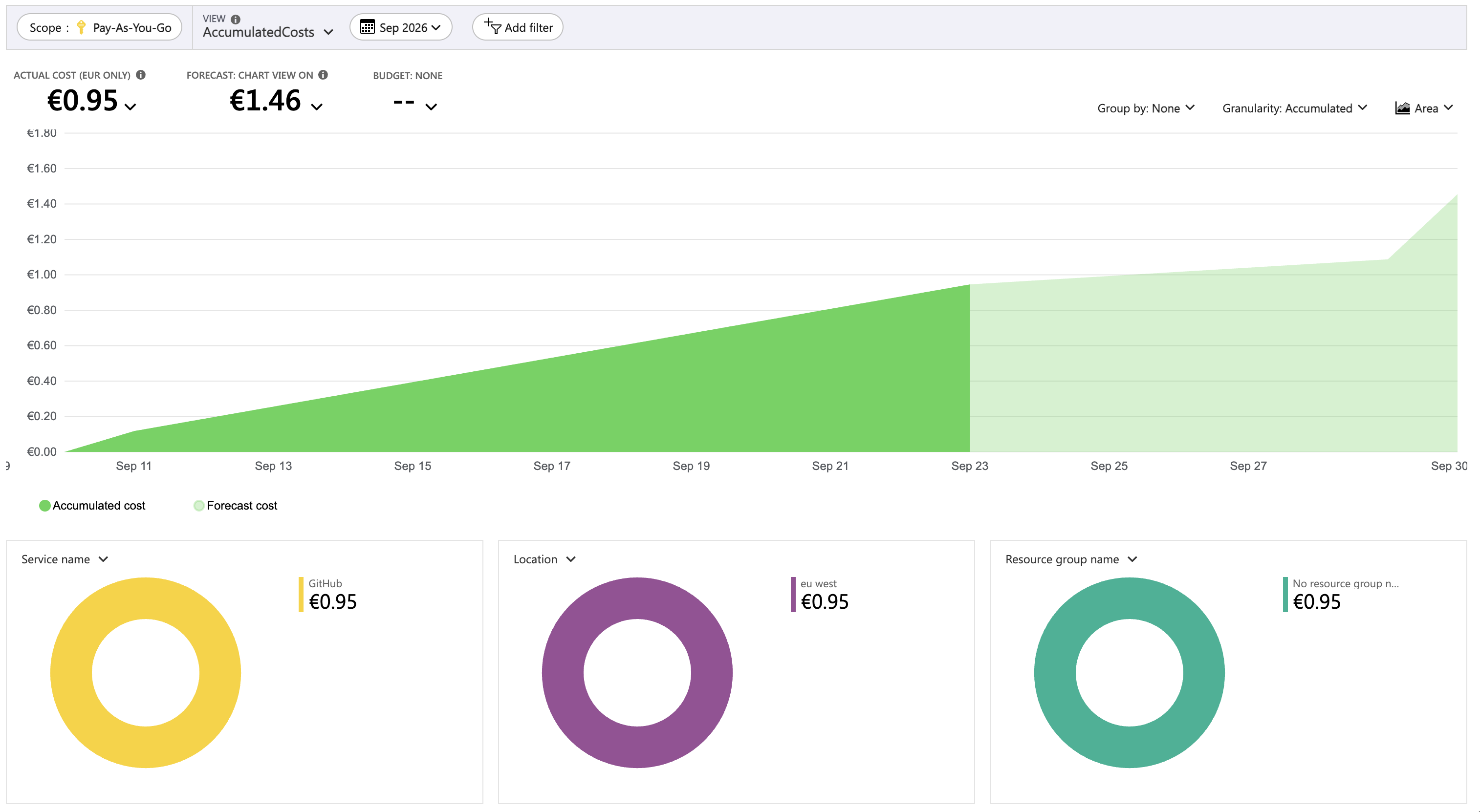
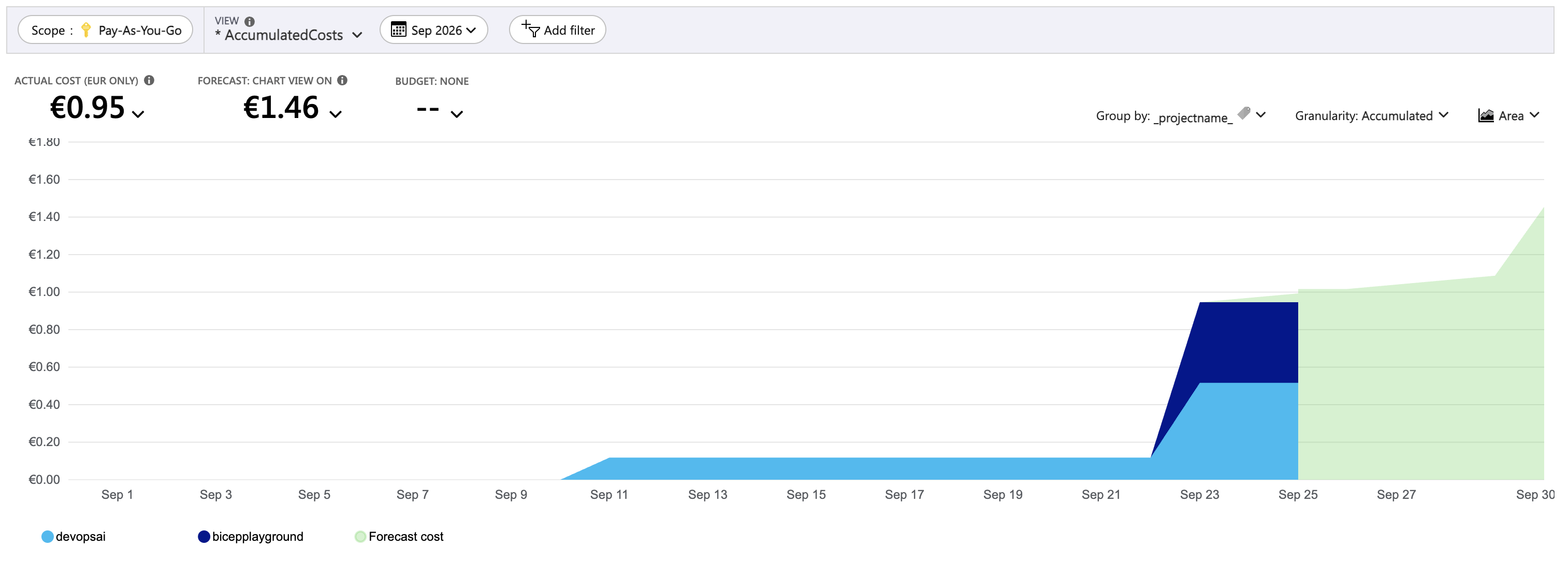
What I really like is that the cost data includes a _projectname_ tag. This allows you to differentiate AI Credits usage per Azure DevOps project and filter the cost data accordingly. You can also use this tag to configure budget alerts for individual projects.
In the image below, you can see the cost data grouped by the _projectname_ tag. In my case, the costs are split between my two projects, devopsai and bicepplayground, which both used GitHub Copilot code review and generated AI Credits costs.
Data processing
GitHub Copilot code review for Azure DevOps is powered by the GitHub Copilot SDK and therefore follows GitHub Copilot’s data-handling policies. This means that customer code and code review content are not used for model training, but the content is sent to GitHub for processing.
Note during this preview! Data processing is not necessarily restricted to the geography in which your Azure DevOps organisation is hosted. For example, data from an Azure DevOps organisation hosted in the EU may be processed in another region, such as the United States. See the Microsoft Docs for more information on this: https://learn.microsoft.com/en-us/azure/devops/repos/git/copilot-code-reviews-faq?view=azure-devops#data-handling-and-privacy
Build your own code reviewer
If you are working in a regulated environment, you might not be allowed to use AI tools that process code outside your own environment. In that case, you can build a similar code review capability while keeping control over model selection and data processing within your own Azure environment.
In another blog post, I explain how you can use Microsoft Foundry and Azure DevOps to automate code reviews: https://johnlokerse.dev/2026/01/06/automated-code-reviews-in-azure-devops-using-openai-models-powered-by-microsoft-foundry/
Conclusion
GitHub Copilot code review is a great tool for organisations that are not yet using GitHub but still want to benefit from AI-powered code review capabilities in Azure DevOps. Although the feature is still in public preview, it already feels polished and delivers useful results during code reviews.

